
The Three Layers of WordPress Website Quality Control
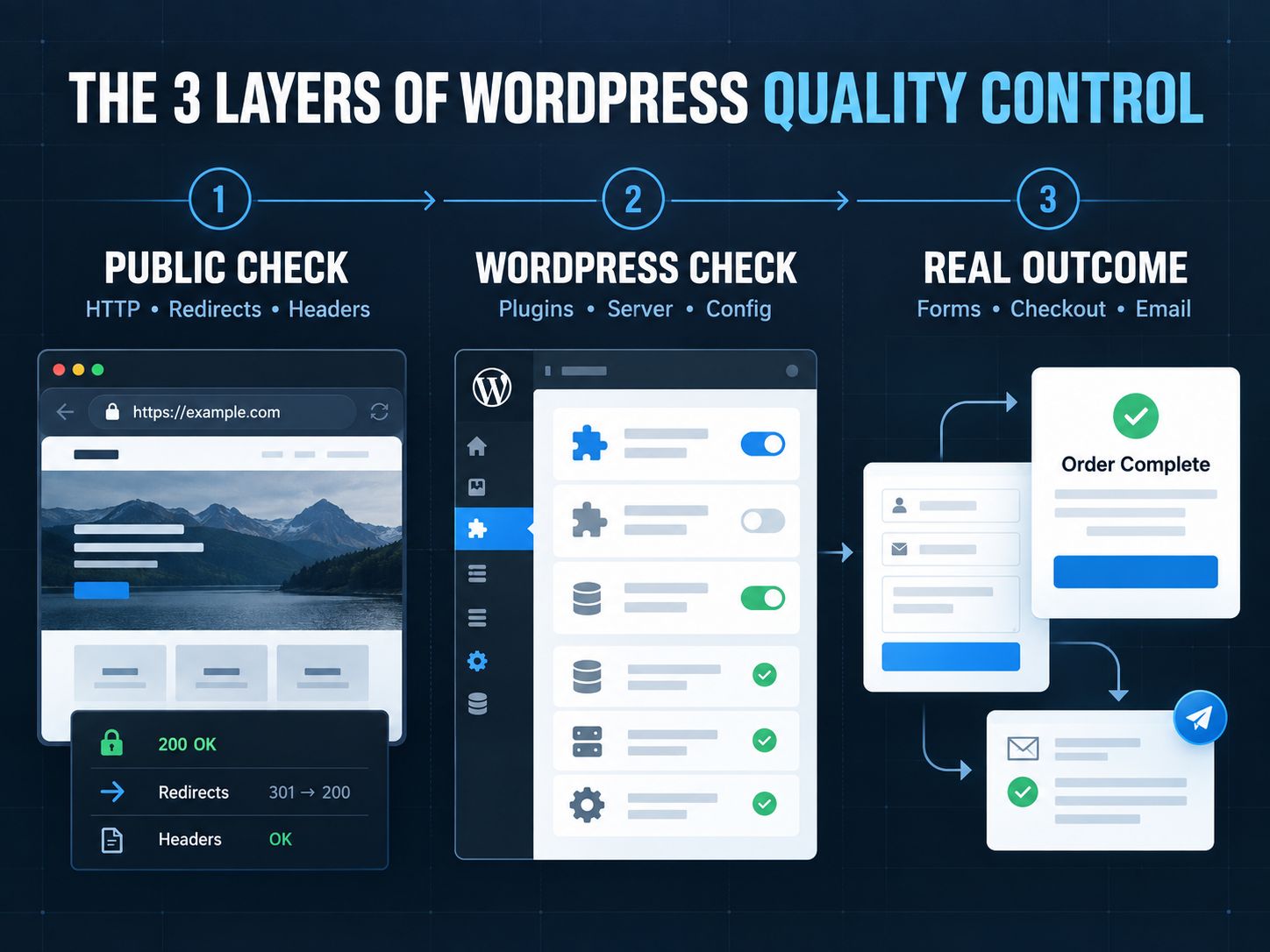
The most reliable WordPress QA process uses three layers: public technical checks, internal WordPress checks, and real-world outcome testing.
This distinction is important because different tools can see different parts of the website.
| QA Layer | What It Answers | Typical Checks |
|---|---|---|
| Public website | What can visitors, browsers, and crawlers see? | HTTP responses, redirects, HTTPS, headers, metadata, page weight, technology signals |
| WordPress/internal | What is happening inside the installation? | Core version, themes, plugins, PHP, database, scheduled events, filesystem, configuration |
| Real outcome | Does the website actually accomplish its job? | Forms, checkout, login, email delivery, analytics, bookings, memberships, integrations |
Many WordPress QA guides combine all three into one enormous checklist.
I prefer keeping them separate.
If a page returns a 500 error, there is no reason to begin by inspecting its button spacing. If the public website is technically healthy but customers cannot complete checkout, another performance score will not solve the real problem.
The order matters.
Key Point: A website can pass an automated scan and still fail its users.
Start With the Public Website
The fastest first step is to check what the live website actually returns before opening WordPress admin.
Start with the important URL itself.
Use the HTTP Status Code Checker to confirm whether it returns the response you expect. A live page should not unexpectedly produce a 404, 5xx response, or unnecessary redirect.
Next, inspect redirects and canonical behavior with the Redirect & Canonical URL Checker. This is particularly useful after domain migrations, HTTPS changes, permalink changes, and content restructuring.
Then review browser-facing security signals with the Website Security Headers Checker.
If the page feels heavy, inspect its resources with the Page Size & Weight Analyzer rather than immediately installing another optimization plugin.
The goal at this stage is not to produce a beautiful report.
It is to answer a simpler question:
Is there an obvious public-facing problem that needs attention first?
What Can a WordPress Website Checker Online Actually Detect?
A WordPress website checker online can inspect publicly exposed information, but it normally cannot see private WordPress configuration, database state, plugin administration, or complete business workflows.
That boundary prevents a lot of misleading conclusions.
| Item | Public Checker | Internal Access Normally Required |
|---|---|---|
| HTTP status | Yes | No |
| Redirect chain | Yes | No |
| HTTPS | Yes | No |
| Canonical tag | Yes | No |
| Meta tags | Yes | No |
| Security headers | Yes | No |
| Page resources | Yes | No |
| WordPress fingerprints | Often | No |
| Theme clues | Sometimes | No |
| Exact WordPress version | Sometimes | For certainty |
| Complete plugin inventory | No | Yes |
| Plugin update status | No | Yes |
| PHP configuration | No | Yes |
| Database information | No | Yes |
| Filesystem permissions | No | Yes |
| Private error logs | No | Yes |
| User-role permissions | No | Yes |
| Successful email delivery | No | End-to-end test |
| Successful payment | No | End-to-end test |
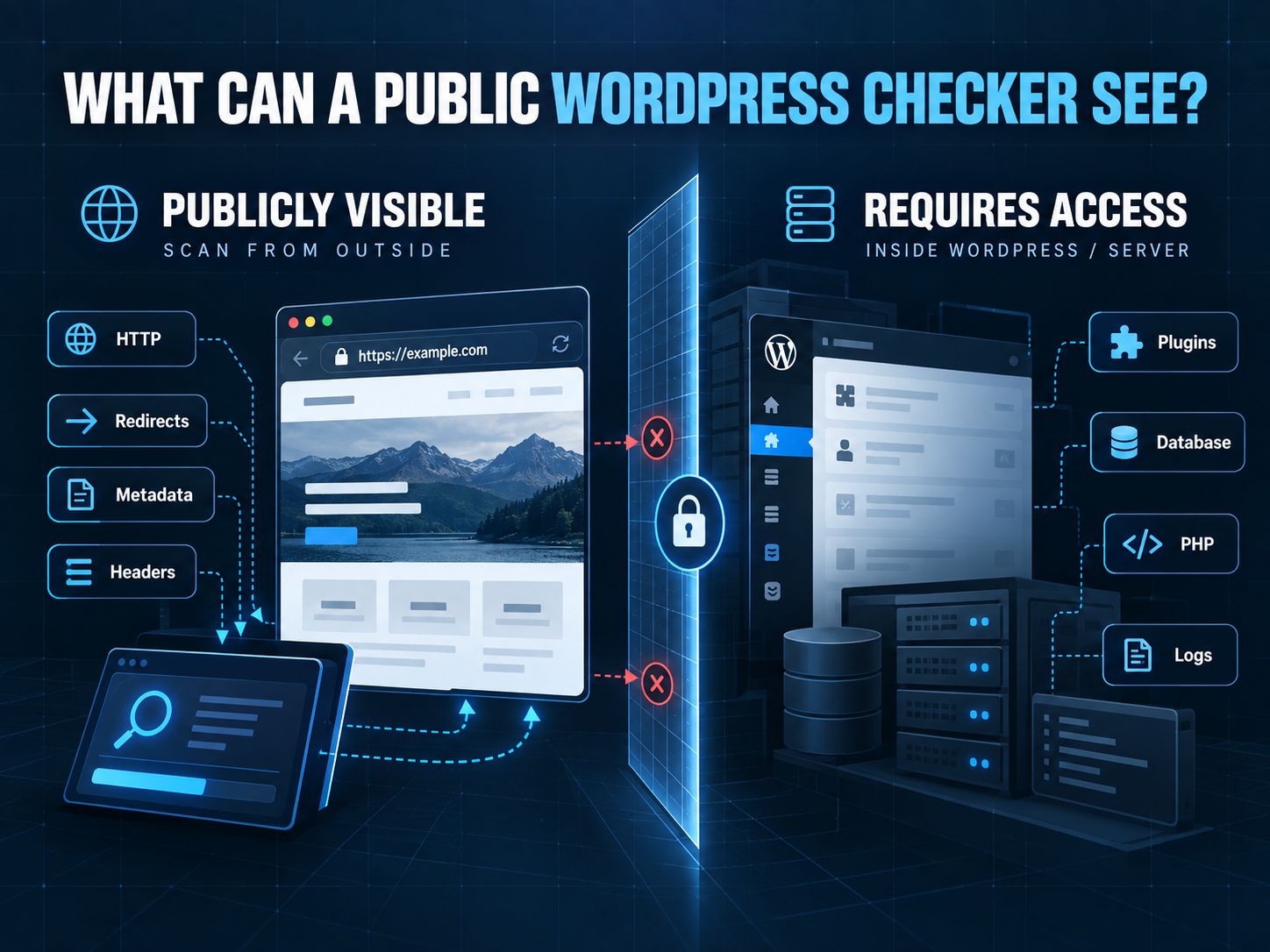
This also explains why two different checkers can produce different results.
A technology scanner might detect WordPress from public files but fail to identify a heavily customized theme. Another scanner might see a version string that has been removed elsewhere.
A negative detection result is not always proof that something does not exist.
Pro Tip: Use a public checker to learn what the public web can observe. Use WordPress itself when you need authoritative information about the installation.
Share This Insight: “A WordPress checker sees what the site exposes. It does not automatically see what the WordPress dashboard knows.”
Can This WordPress Site Go Live?
A site should not be approved simply because most tests passed. Release decisions should be based on the severity of the unresolved problem.
Use this practical decision framework:
| Finding | Example | Decision |
|---|---|---|
| Stop-release issue | Checkout cannot complete, major pages return 5xx errors, serious known vulnerability, authentication failure | Do not launch |
| Must-fix issue | Contact form fails, mobile navigation breaks, important pages are noindexed, critical redirect is wrong | Fix before launch |
| High-priority improvement | Serious performance issue, accessibility barrier on an important flow, unreliable third-party integration | Fix before launch when materially affecting users |
| Lower-risk issue | Small visual inconsistency, minor spacing problem, non-critical cosmetic defect | May schedule after launch |
| Confirmed pass | Critical journey works and no significant blocker remains | Release candidate |
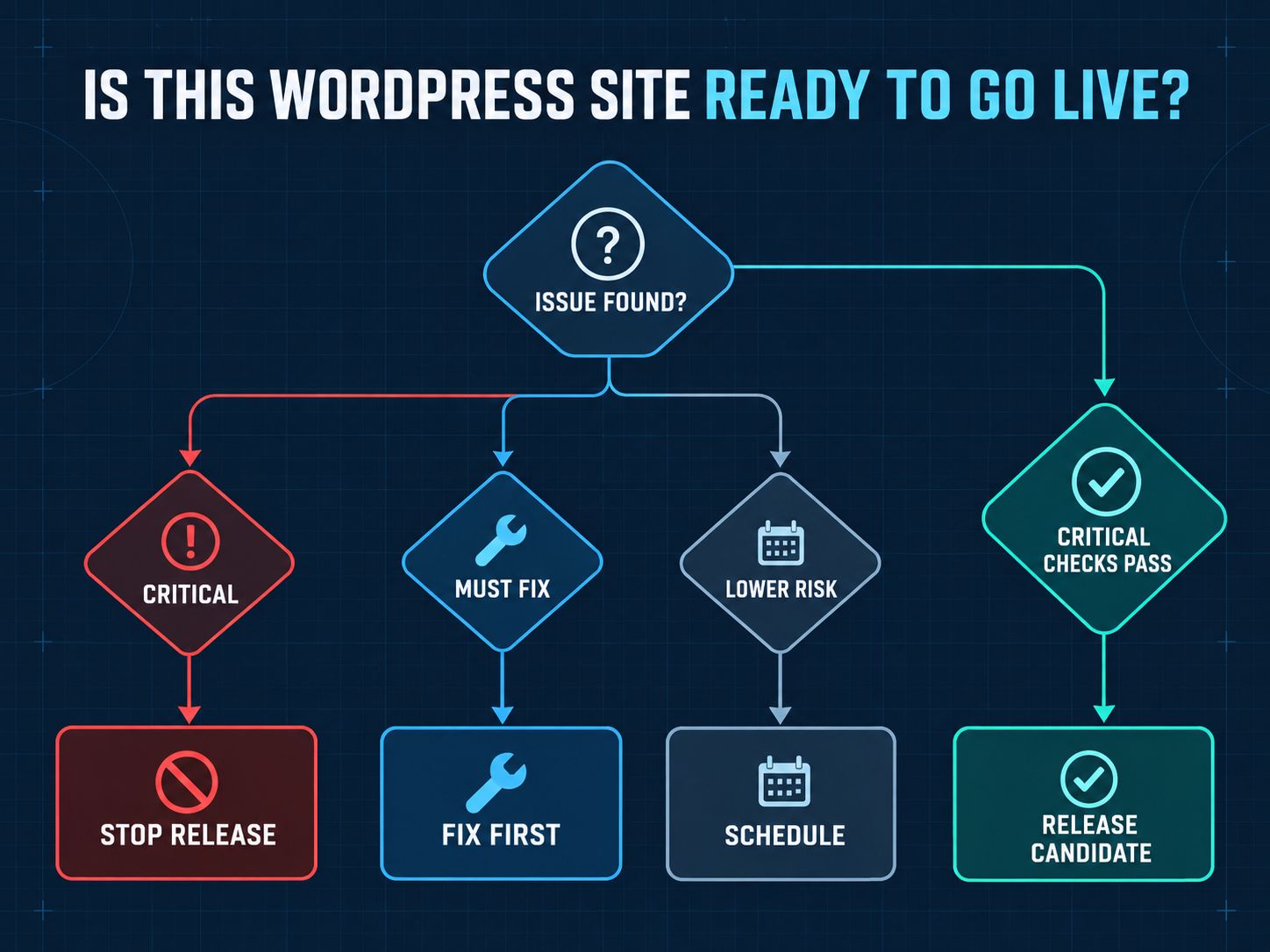
This is more useful than counting the number of green and red items in a report.
One broken payment flow matters more than twenty passed cosmetic checks.
Common Mistake: Do not calculate website readiness by percentage alone. Ninety-eight passed checks and one failed checkout can still mean the site is not ready.
Check WordPress Site Health Next
Once public checks look reasonable, move inside WordPress and inspect the information an external checker cannot access.
WordPress Site Health is available under Tools → Site Health.
The Status tab identifies critical issues and recommended improvements. The Info tab provides detailed information about WordPress, plugins, themes, server configuration, database configuration, and filesystem permissions.
Use it as diagnostic evidence rather than trying to turn every screen perfectly green.
A recommendation can have very different importance depending on the website.
A problem affecting scheduled events matters more on a publishing or ecommerce site that relies on automation than on a simple static brochure site.
Ask:
What function could this warning affect?
That question produces better decisions than:
How do I make this warning disappear?
How to Check the WordPress Version Without Login
You can sometimes detect a WordPress version without logging in by examining public metadata, feeds, assets, HTML, or other WordPress fingerprints, but public detection is not guaranteed.
The Website Technology Checker can help identify publicly visible technology signals.
A WordPress version checker may use generator metadata, script or stylesheet versions, feeds, known files, or other clues.
Those signals can be hidden, rewritten, or cached.
If you own the website, the dashboard, Site Health, WP-CLI, or server files provide a more reliable answer.
There is also a freshness issue.
As of October 4, 2026, WordPress 7.1.2 is the latest stable WordPress release. It was released on September 22, 2026 as a security release, and WordPress recommends updating affected sites promptly. WordPress 7.2 remains in development for an early-December 2026 release. WordPress 7.1.2 release information.
A version number therefore means little unless it is compared with current release information.
How Does a WordPress Theme Detector Work?
A WordPress theme detector searches public website files and markup for recognizable theme signatures.
A conventional installation may expose files through paths containing /wp-content/themes/, making the theme directory relatively easy to identify.
This is also how many website theme checker online services work.
Detection becomes less reliable when a website uses a custom theme, renamed assets, child themes, CDN rewriting, aggressive optimization, or a headless architecture.
That is why a failed detection should be reported as:
“Theme not detected from public signals.”
Not:
“This website has no WordPress theme.”
That difference sounds small, but it is the difference between evidence and guessing.
Where Does WPScan Fit Into WordPress Website Quality Control?
WPScan belongs in the security layer of WordPress QA; it does not replace functional, performance, accessibility, or business-flow testing.
WPScan maintains a WordPress-focused vulnerability database covering WordPress core, themes, and plugins. Its current scanner can examine a website for security findings and known vulnerabilities.
The WPScan CLI also received a significant 4.0 update in May 2026. Its default scan now focuses on the WordPress version, active theme, and security findings unless additional enumeration is requested. WPScan 4.0 release details.
That makes WPScan valuable when investigating WordPress website vulnerabilities.
But a vulnerability scanner cannot tell you whether:
- your WooCommerce tax calculation is correct,
- a membership user receives the right permissions,
- a booking reaches the correct calendar,
- or your contact-form notification reaches the inbox.
Security is one quality gate.
It is not the entire quality-control process.
Warning: Only actively scan systems you own or have permission to test.
A QA process should reduce risk, not create it.
Test the Outcome, Not Just the Interface
Manual QA should follow the website’s most valuable user journey from beginning to end and confirm the real result outside the browser where necessary.
This is where many automated audits stop too early.
Imagine testing a contact form.
You fill it out.
The validation works.
The page displays “Message sent successfully.”
Most visual QA would mark the test as passed.
But did the email arrive?
Did the CRM receive the lead?
Did the confirmation message go to the user?
Was the conversion event recorded once?
Until those questions are answered, you have tested the interface—not the outcome.
The same principle applies to ecommerce.
Do not stop after adding a product to the cart. Test the relevant payment method, shipping condition, tax logic, transactional email, and resulting order.
Real Example: A success message can be perfectly functional while the mail server rejects the notification behind the scenes. The browser says “passed.” The business experiences a lost lead.
That is exactly the kind of problem human QA is meant to catch.

Test Mobile and Browser Behavior Where It Matters
Responsive QA should confirm that important actions remain usable on different screens, not simply that the layout becomes narrower.
Use browser developer tools for quick inspection, then test important interactions on representative real devices when the project warrants it.
Focus on navigation, forms, checkout, popups, consent banners, sticky elements, tables, touch targets, and interactive components.
Do not use Google’s old Mobile-Friendly Test as a current recommendation. Google retired the Mobile-Friendly Test, its API, and Search Console’s Mobile Usability report in December 2023, while continuing to stress the importance of mobile usability.
The practical question is no longer:
“Did an old mobile test give me a green result?”
It is:
“Can a real visitor comfortably finish the task on this screen?”
Check Performance by Finding the Bottleneck
WordPress performance QA should identify what is actually slowing the page instead of chasing a perfect score.
If the page is unusually heavy, inspect images, fonts, JavaScript, CSS, video, embeds, and third-party scripts.
If the HTML response itself is slow, look deeper into hosting, caching, database work, PHP execution, and external API requests. These areas are also closely related to broader web architecture decisions.
These are different problems.
Installing three additional performance plugins does not turn them into the same problem.
For broader troubleshooting, the WebPlatformLab performance auditing tools can be used for focused checks, while the Core Web Vitals optimization guide provides more context for WordPress performance work.
Key Point: Measure first. Optimize the bottleneck you actually have.
Check Technical SEO From the Published Output
Technical SEO quality control should inspect what search engines receive rather than trusting the settings visible inside an SEO plugin.
Check important templates for status codes, canonical URLs, indexability, titles, descriptions, and structured data.
If metadata needs rebuilding, the Meta Tag & OpenGraph Generator can help prepare the required markup.
For appropriate structured data, use the Schema Markup Generator as a starting point and validate the final implementation.
Crawler instructions also deserve care. A Robots.txt Generator can make the syntax easier to prepare, but the finished directives should always be reviewed before publication.
The same principle applies to Rank Math, Yoast, and other WordPress SEO plugins.
The plugin is an interface.
Search engines receive the output.
Share This Insight: “Technical SEO QA should test what the website publishes, not just what an SEO plugin says it will publish.”
My Practical WordPress QA Order
From my own WordPress work, I have found that QA becomes much faster when the highest-risk questions are answered first.
Since 2019, I have worked across more than 200 WordPress projects, including WooCommerce, custom themes, plugins, performance troubleshooting, and third-party integrations.
My practical order looks like this:
| Order | What I Check | Why It Comes Here |
|---|---|---|
| 1 | Availability, HTTP status, redirect, and indexability | If the page cannot be reached correctly, later checks are secondary |
| 2 | Main business journey | Finds revenue, lead, or access failures early |
| 3 | Mobile and interactive behavior | Often exposes issues desktop testing misses |
| 4 | WordPress Site Health, updates, and environment | Reveals internal problems invisible publicly |
| 5 | Security exposure and vulnerable components | Determines whether the installation carries avoidable risk |
| 6 | Performance bottlenecks | Improves experience after critical functionality is confirmed |
| 7 | SEO output, analytics, and secondary details | Confirms discovery and measurement before sign-off |
| 8 | Final regression check | Makes sure a fix did not break something that previously worked |
This is not the only valid workflow.
It is a risk-based workflow.
That distinction matters because a five-page company website and a WooCommerce store should not receive identical QA effort.
A Simple Final Release Check
Before approving a site, answer five questions clearly.
- Can visitors reach the important pages without unexpected errors or redirects? Required answer: Yes
- Can the website complete its most important user journey? Required answer: Yes
- Are there unresolved critical security or update issues? Required answer: No
- Does the important journey work on representative mobile and desktop environments? Required answer: Yes
- Did you verify the actual result—email, payment, booking, account, analytics event, or other intended outcome? Required answer: Yes
If you cannot answer one of these confidently, you have found the next QA task.
That is far more actionable than receiving an unexplained score of 87/100.
Frequently Asked Questions
How to optimize a WP website?
Measure the bottleneck first. Check page weight, image sizing, JavaScript, CSS, third-party scripts, server response time, caching, and database work. Fix the largest measurable problem before adding more optimization software.
How can I fix blurry images in WordPress?
Check whether the image being displayed is smaller than its rendered dimensions, whether WordPress is loading the wrong generated image size, and whether a CDN or optimization plugin is compressing it too aggressively. Inspect the actual image source and responsive srcset before replacing the image.
Which SEO is best for WordPress?
There is no universally best WordPress SEO plugin. Established tools such as Rank Math and Yoast can manage common SEO controls. What matters during quality control is whether the finished site outputs the correct canonical URL, metadata, indexability directives, sitemap, and structured data.
How can I clean up my WordPress website?
Create a backup first. Then review unused plugins and themes, obsolete integrations, unnecessary users, and old functionality. Be more cautious with database cleanup because plugin tables, scheduled events, and stored data may still support active features.
Is a WordPress website checker extension better than an online checker?
Not necessarily. A WordPress website checker extension can inspect browser-visible information conveniently, while an online checker can analyze a URL without installation. WordPress Site Health has deeper application-level access. They answer different questions rather than replacing one another.
Is WPScan enough to check a WordPress website?
No. WPScan is valuable for security and vulnerability detection, but complete WordPress QA also needs functional, performance, responsive, SEO, and real user-journey testing.
Can a high performance score prove my site is healthy?
No. A very fast website can still have broken forms, incorrect redirects, security vulnerabilities, accessibility problems, indexing mistakes, or failed payment logic.
How often should WordPress quality control be performed?
Run targeted QA after meaningful core, theme, plugin, code, PHP, hosting, CDN, DNS, or integration changes. Business-critical sites should also monitor important journeys between releases rather than waiting for the next redesign.
Our Perspective
WordPress website quality control should answer one practical question:
What could stop this website from safely doing its job?
Start outside the site because public technical checks are fast.
Move inside WordPress when you need application and server context.
Use specialized security tools when you need vulnerability intelligence.
Then test the journeys that matter to real users and verify the result—not just the message displayed on the screen.
A scanner can give you evidence.
A checklist can give you consistency.
Neither should replace judgment.
The site is ready when the important functions work, serious risks have been addressed, and you have enough evidence to trust the release.
Written by: Md Zubayer Al Hasan
Experience: WordPress developer since 2019 with hands-on experience across 200+ WordPress projects, including WooCommerce, custom themes, plugins, performance optimization, and technical troubleshooting.
Have you ever found a WordPress issue that passed an automated checker but failed for a real user? Share what happened in the comments. Those edge cases often teach more about practical QA than another perfect automated score.