
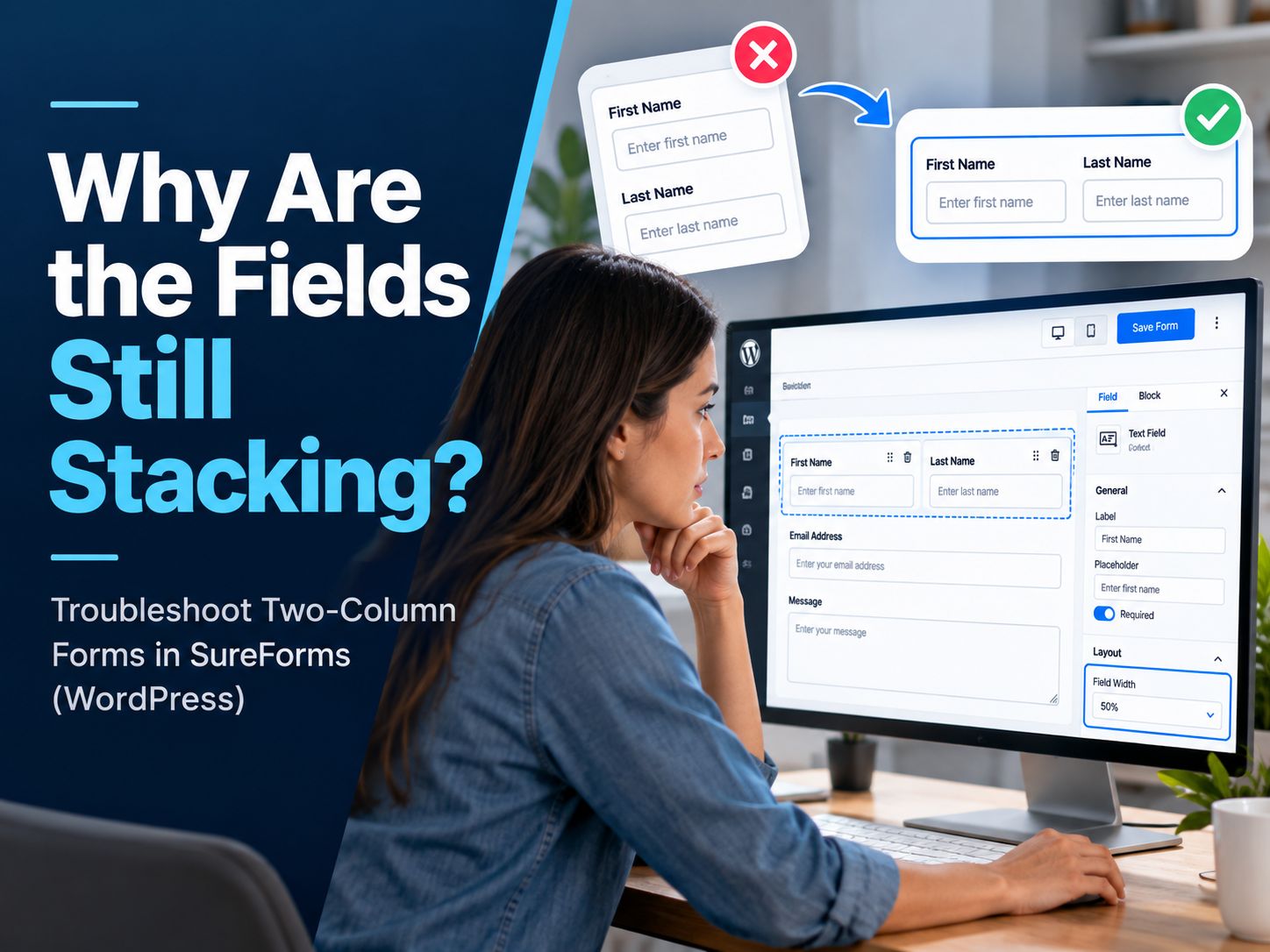
Trying to make a SureForms form display two fields on the same row? You usually do not need custom HTML or CSS. Set two consecutive fields to 50% width, preview the form, and check the published version on both desktop and mobile. The important part is choosing fields that actually belong together rather than turning every available space into another column.
How Do You Make SureForms Two Columns?
Select two consecutive fields and set each one to 50% width. SureForms documents 50% as the field width used to split a row into two columns.
Here is the simplest workflow:
- Open WordPress Dashboard → SureForms.
- Edit the form you want to change.
- Put the two fields that should share a row next to each other.
- Select the first field.
- Open its block or advanced field settings.
- Set Field Width to 50%.
- Select the second field and also set it to 50%.
- Save the form and preview it.
- Check the published page, not only the editor.
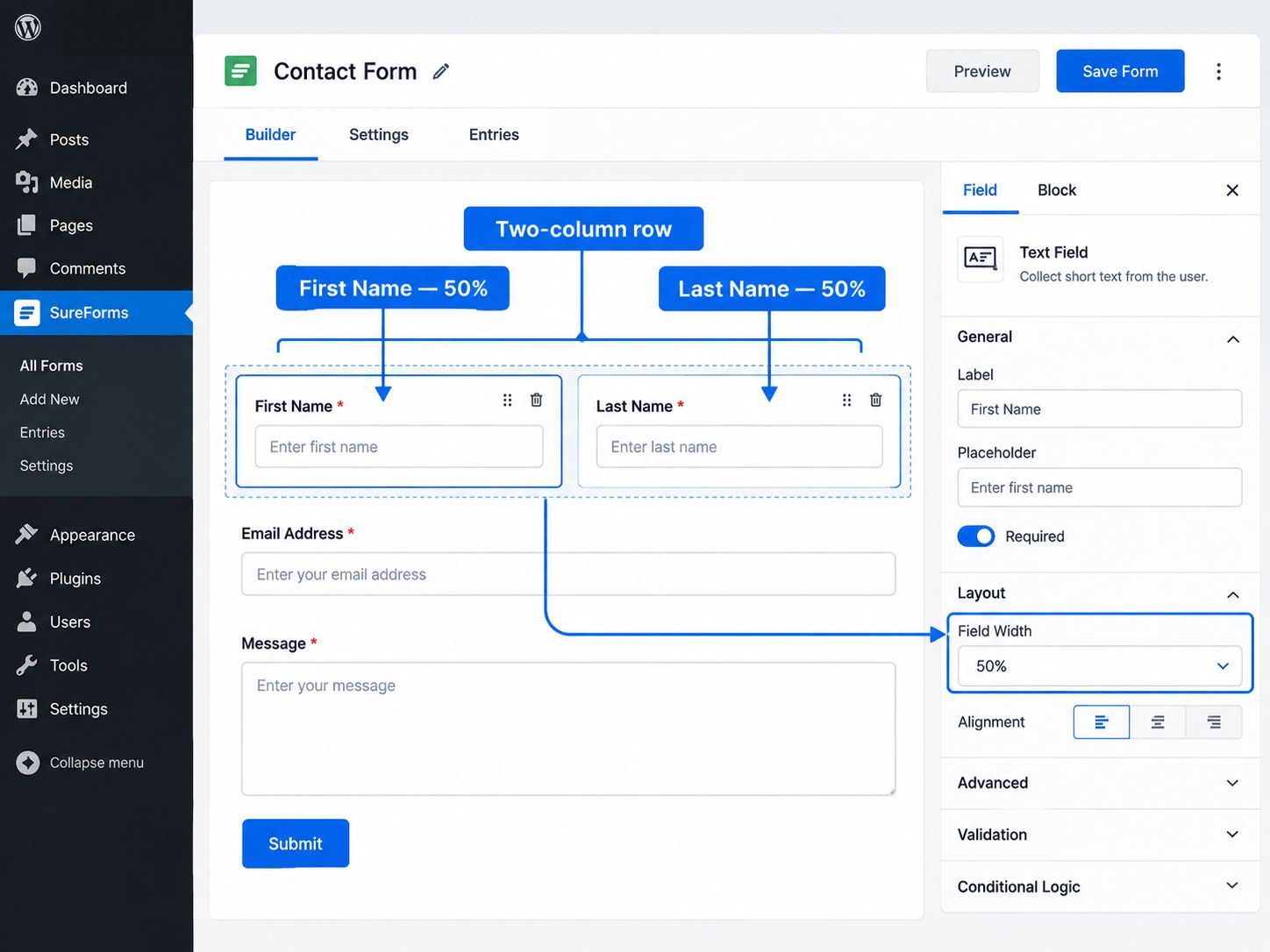
SureForms’ official inline-form documentation currently lists 75%, 50%, 33%, and 25% field widths, with 50% specifically described as the option for splitting fields into two columns .
A basic contact form could be arranged like this:
| Left | Right |
|---|---|
| First Name — 50% | Last Name — 50% |
| Email — 50% | Phone — 50% |
| Message — 100% | |
| Submit |
The Message field stays full width because a longer answer benefits from more room.
Practical rule: Start with native SureForms controls. Custom CSS should solve a real limitation, not replace a setting the plugin already provides.
Should You Use 50/50, 75/25, or a Full-Width Field?
Use 50/50 when the answers are similar in length, 75/25 when one field clearly needs more space, and 100% when the field requires attention or a longer response.
This is the decision I would use:
| Layout | Good use | Usually avoid for |
|---|---|---|
| 50% + 50% | First Name + Last Name | Long text fields |
| 75% + 25% | Street Address + ZIP Code | Two equally important fields |
| 33% + 33% + 33% | Three short related fields | Long labels or long answers |
| 100% | Message, detailed instructions, consent | Short paired fields |
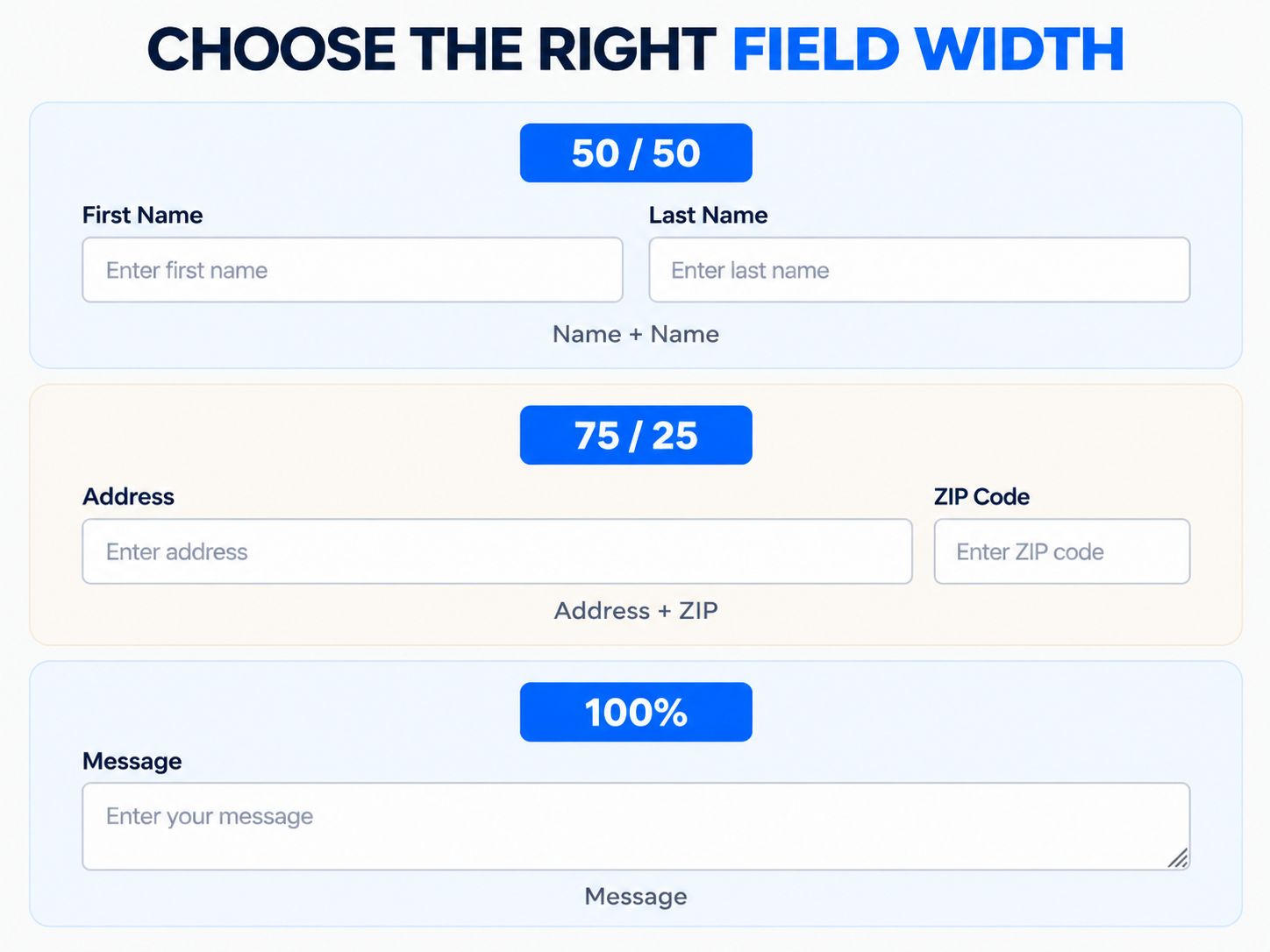
SureForms also documents 33% for three fields and 25% for four fields in an inline row.
The fact that four fields can fit into a row does not mean they should.
Consider this pair:
First Name | Last Name
Users immediately understand the relationship.
Now consider:
Email Address | Tell us about your project
Those questions have different purposes and very different expected answer lengths. Putting them beside each other saves vertical space but makes the form harder to scan.
That is the distinction that matters more than the percentage itself.
How I Would Test a Two-Column SureForms Layout Before Publishing
A form that looks correct in the editor is not finished. I use a short QA pass because the surrounding WordPress page architecture can affect the final layout.
First, create one simple test row:
First Name — 50%
Last Name — 50%
Follow it with:
Email — 100%
Then check five things on the actual frontend.
The First Name and Last Name fields should appear in the intended relationship on a normal desktop viewport. Their labels should remain easy to read. The Email field should begin a new row. Keyboard focus should move through the fields in the same logical order users see them. Finally, the form should remain comfortable to complete on a phone.
This little test tells you much more than repeatedly adjusting CSS inside the editor.
It also gives you something competitors often lack: a repeatable way to verify whether the layout actually works on your WordPress site.
If you document this test with your own screenshots, the article gains real visual evidence rather than another generic diagram.
What Happens to SureForms Two Columns on Mobile?
Do not assume a desktop 50/50 layout will behave exactly the way you want on every mobile page. Check the published form at narrow widths.
The official SureForms inline-form guide explains how to assign percentage widths and tells users to save and preview the result, but it does not document one universal mobile breakpoint for every 50% field arrangement.
That distinction is important.
Your final form sits inside a WordPress theme, content container, page builder, and possibly custom CSS. Any of those layers can affect available width and responsive behavior.
A desktop layout might comfortably look like:
On a narrow phone, the important question is not whether you technically preserve two columns. It is whether users can still read the labels, tap the inputs, see validation messages, and enter information comfortably.
If the fields become cramped, a stacked mobile arrangement is usually easier to use:

Do not add CSS just because a tutorial says mobile fields “should” stack at a particular pixel width. First check what your current form, theme, and page container actually do.
For production sites, this is also where a broader WordPress website quality-control check is useful: test the real page, not only the builder preview.
Why Are My SureForms 50% Fields Still Showing on Separate Rows?
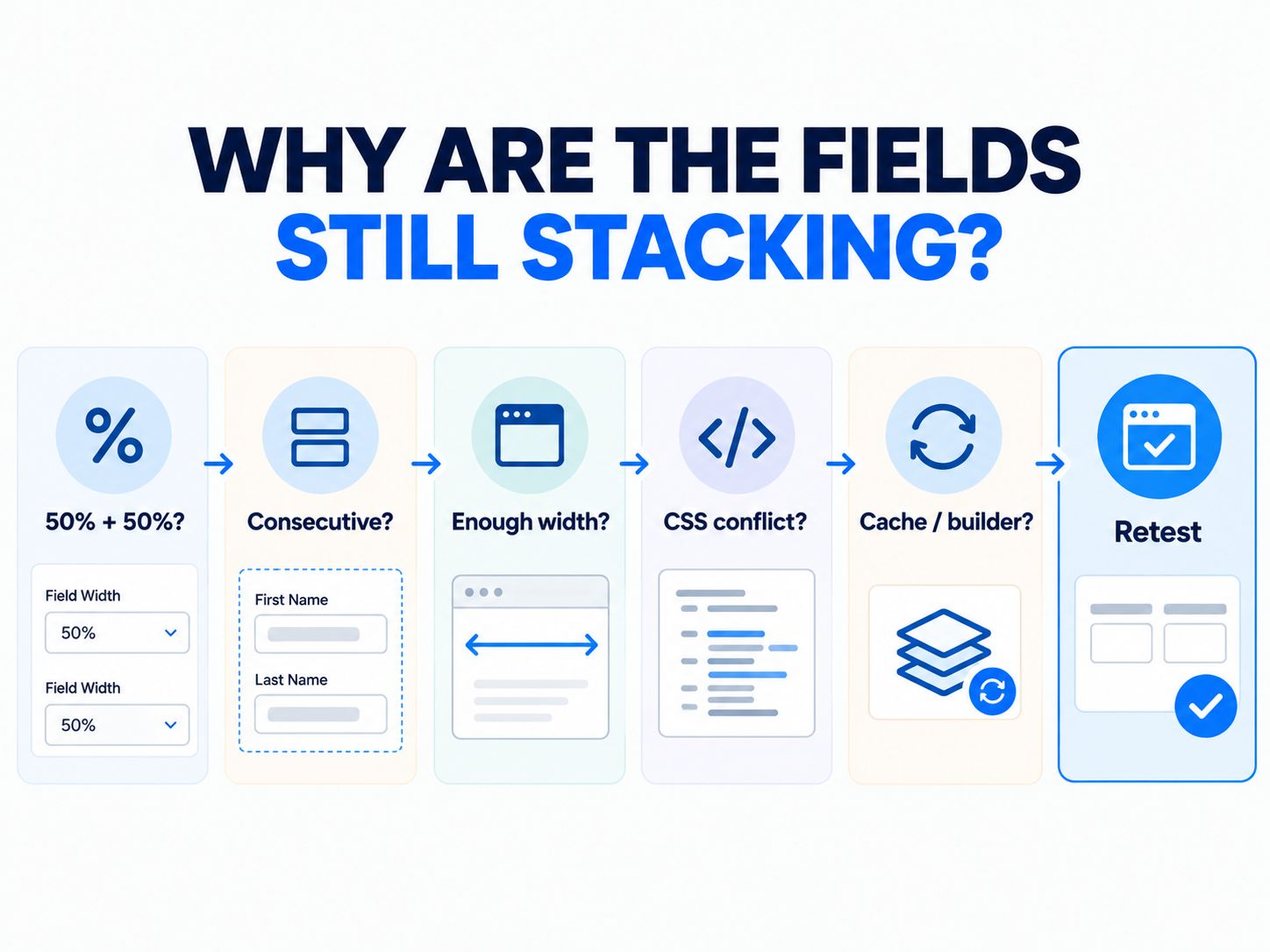
Work through the layout from the form outward. Check the field settings first, then field order, container width, custom CSS, caching, and your page builder.
Start by reopening both fields. It is easy to change one field to 50% while accidentally leaving the other at 100%.
Then check their order.
This is the intended structure:
This is different:
The full-width element interrupts the pair.
If the field settings are correct, inspect the page around the form. A form embedded inside a narrow sidebar or small page-builder column has much less room than a full-width content area.
Next, temporarily disable layout-related custom CSS. Rules affecting
width, max-width, flex,
grid, or child elements can override what the form builder is
trying to do.
Then clear relevant caches and check the published page again.
This is particularly worth doing on current SureForms installations because recent releases have included fixes related to cached pages and page builders. SureForms 2.12.7, released September 11, 2026, fixed an issue where Breakdance and builders with similar output buffering could strip form styles and the submit script. It also fixed submitted fields being lost when a caching plugin served an older page copy. The current changelog lists SureForms 2.12.8, released September 25, 2026.
So if your editor looks correct but your live page does not, updating and clearing cache are reasonable troubleshooting steps before rebuilding the form.
For a high-traffic or client site, test changes on a WordPress staging environment before altering production CSS.
When Should You Avoid a Two-Column Form?
Avoid columns when putting fields side by side makes the form harder to understand, harder to type into, or harder to navigate by keyboard.
Long Message fields are obvious candidates for a full row.
The same is often true for consent text, detailed instructions, large upload controls, complex select fields, and questions with long labels.
There is another detail worth checking: reading order.
Older multi-column implementations in other WordPress form systems sometimes relied on CSS that visually moved fields without changing their underlying order. Historical Gravity Forms discussions show how this could create confusing keyboard tab behavior in column layouts.
You do not need to reproduce those old techniques in SureForms, but the lesson remains useful: arrange fields in the editor in the same logical order that a person should read and complete them.
Then press the Tab key through your published form once.
It takes seconds and catches problems a screenshot cannot.
Can You Make Two Unequal Columns in SureForms?
Yes. A 75% field beside a 25% field is useful when one answer naturally requires much more horizontal space.
For example:
A 50/50 split would give ZIP Code much more room than it needs while restricting the street address.
SureForms documents both 75% and 25% widths in its inline-layout controls.
I would choose an unequal layout only when the content clearly justifies it. Unequal widths should communicate the expected size of the answers rather than simply create a more interesting design.
Sure Forms: How to Make It 2 Columns in HTML
If you are building a standalone HTML form rather than using SureForms’ native field-width controls, CSS Grid is a straightforward approach.
That code is useful for custom development , but it is not the first solution I would use for ordinary SureForms fields.
If the fields already live inside SureForms, try the native percentage widths first.
Do You Need Custom CSS for SureForms Two Columns?
Not for a normal 50/50 row.
CSS becomes useful when your design requires something outside the native controls—for example, a very specific breakpoint, an unusual width ratio, or a theme-specific override.
Before writing that CSS, identify what is actually wrong.
If the native 50/50 configuration already works, extra CSS creates another thing that can become incompatible later.
That is why my preferred order is:
Native SureForms settings → live-page test → mobile and keyboard test → conflict diagnosis → custom CSS only if necessary.
The sequence keeps simple layouts simple.
For more WordPress troubleshooting and implementation guidance , use the same principle: solve the problem with the most stable native option before adding another customization layer.
A 60-Second SureForms Two-Column Checklist
Before publishing, check the following:
- Both intended fields have the width you expect.
- The two fields are consecutive in the editor.
- Related questions are grouped together.
- Long fields remain full width.
- Labels still fit comfortably.
- The live page matches the intended desktop layout.
- The form is comfortable to complete on a real mobile width.
- Keyboard Tab order follows the visible reading order.
- Validation messages do not become cramped or overlap.
- Custom CSS is not overriding the field layout.
- Cached CSS or HTML has been cleared after changes.
- The form still submits successfully.
A form is not finished because the boxes line up. It is finished when the person completing it can move through those boxes without thinking about the layout.
FAQ
How do I make two columns in SureForms?
Set two consecutive fields to 50% width and preview the form. SureForms documents 50% as the width used for a two-column field arrangement.
Can I create three columns in SureForms?
Yes. SureForms documents 33% widths for displaying three fields in a row.
Can I create four columns?
SureForms also provides 25% field widths. Four columns can work for very short fields on sufficiently wide layouts, but usability matters more than fitting the maximum number of fields into a row.
How do I make one column wider than the other?
A 75% + 25% combination is the clearest native option when one field needs considerably more room.
Why does my two-column form look different on the live page?
Check the width of the parent container, theme and page-builder styles, custom CSS, caching, and the SureForms version. Recent SureForms releases have included page-builder and caching-related fixes.
Should I use CSS Grid instead?
Use CSS Grid when you are building a custom HTML layout or need behavior SureForms’ native controls cannot provide. For ordinary SureForms fields, the built-in width settings are simpler.
Final Take
For most people searching how to make SureForms two columns, the answer is simply 50% + 50%.
The better question is what happens after that.
Choose fields that genuinely belong together, use 75/25 when their expected answer lengths are different, leave long or important fields at full width, and check the published form on desktop, mobile, and keyboard navigation before calling it finished.
If the layout breaks, troubleshoot the surrounding WordPress page before replacing a native SureForms feature with custom code.