What Should You Do?
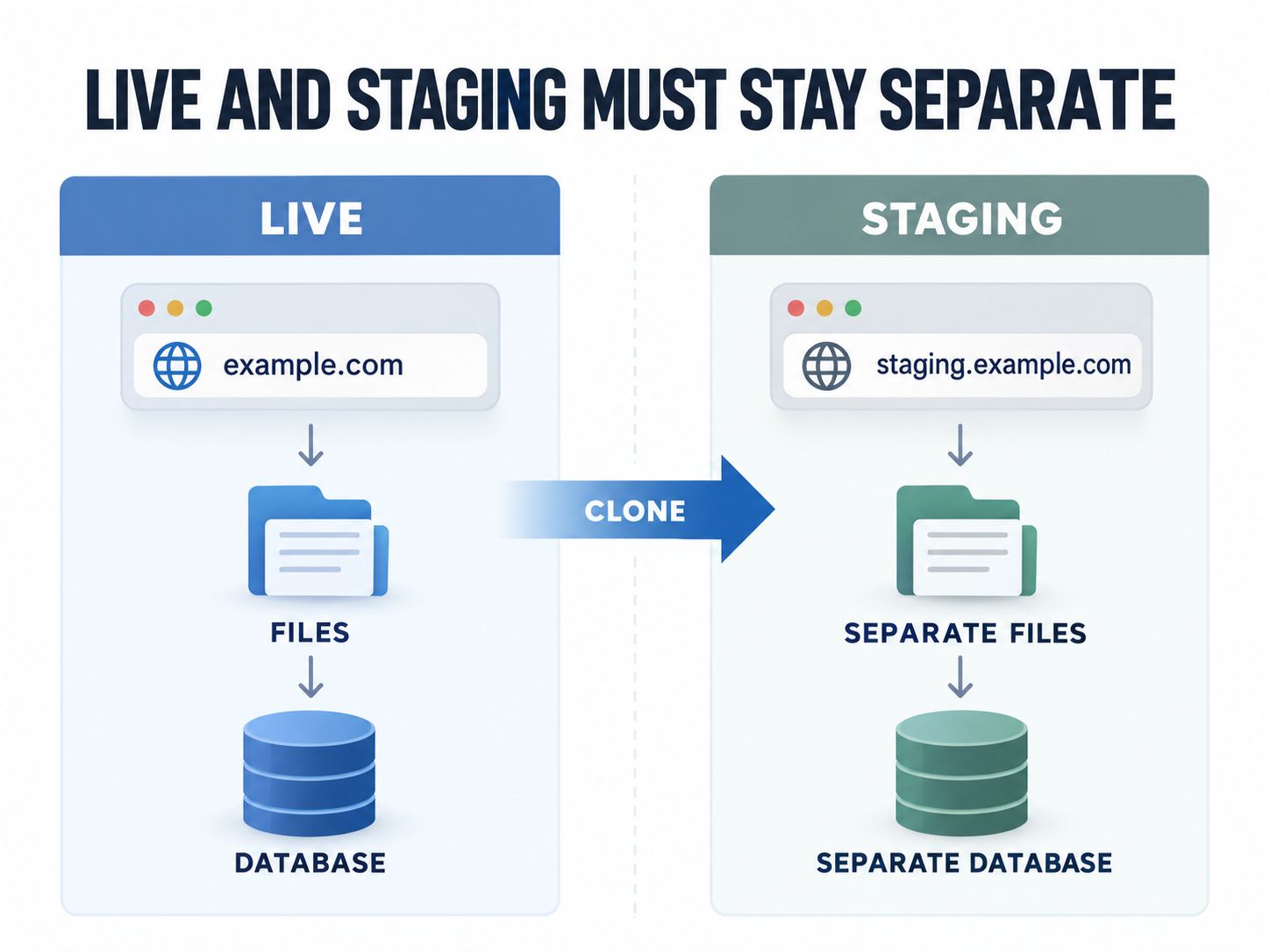
If you use Blacknight WordPress Hosting, start by creating staging.example.com in cPanel and do not share the live site’s document root.
Then choose your cloning method:
| Your situation | Best route |
|---|---|
| Your control panel has a supported Clone/Staging function | Use it after taking a backup |
| You are comfortable with files and databases | Manual cPanel clone |
| You want a guided migration/staging workflow | Use a reputable staging or migration plugin |
| The live site is WooCommerce, membership, booking, or LMS | Clone normally, but plan the return-to-production step very carefully |
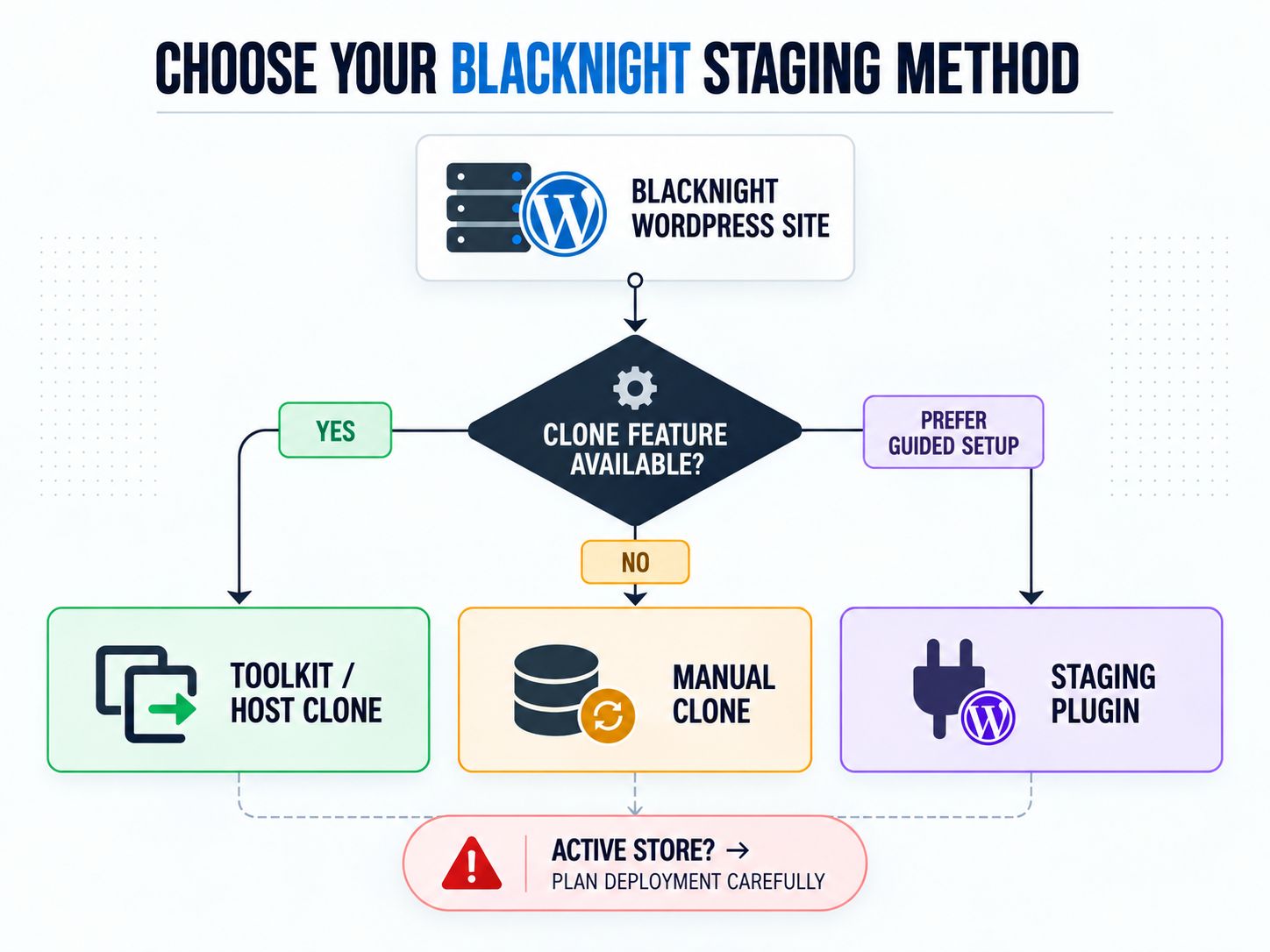
The rest of this guide explains each route and, more importantly, the mistakes that can turn a staging site into a production problem.
Explore the WordPress platform and architecture resources if you also need broader WordPress implementation guidance.
First, Identify Your Blacknight Hosting Environment
Do not assume every Blacknight tutorial applies to every Blacknight account.
Current Blacknight WordPress Hosting is managed through cPanel. Blacknight also offers Plesk-based hosting products, and its help centre contains separate WordPress Toolkit documentation for Plesk environments.
There is one nuance worth understanding.
Blacknight’s current WordPress Hosting documentation says WordPress Toolkit can be accessed from inside cPanel for WordPress management. However, Blacknight’s published WordPress Toolkit cloning and synchronization guides are part of its Plesk-oriented Toolkit documentation.
That means the interface visible in your account should determine the workflow—not screenshots from an unrelated hosting plan.
For Blacknight’s current subdomain procedure, see the official Blacknight subdomain guide.
Before You Touch Staging, Check These Five Things
A staging setup becomes much safer when you know exactly what belongs to production before making a copy.
Record:
- The live site’s document root
- The live database name
- The current PHP version
- Where your latest file/database backup is stored
- Which services can perform real-world actions, such as payments, emails, CRM updates, webhooks, imports, or scheduled jobs
The second item is especially important.
If staging accidentally continues using the live database, the site may appear to work perfectly while your tests quietly modify production data.
A Practical Pre-Flight Test
Before changing anything, open the live site’s wp-config.php and note the current DB_NAME.
Later, when the staging copy is ready, compare that value with the staging copy.
They should not be the same database.
If you need help reviewing WordPress configuration values, the WordPress configuration and code generator resources can provide a useful reference.
Create the Staging Subdomain in Blacknight cPanel
For current Blacknight WordPress Hosting, open:
Blacknight Control Panel → Services → My Services → your WordPress plan → cPanel
Inside cPanel:
Domains → Create a New Domain
Enter your staging hostname:
The critical setting is:
Share document root (/home/username/public_html) with example.com
Leave that unchecked.
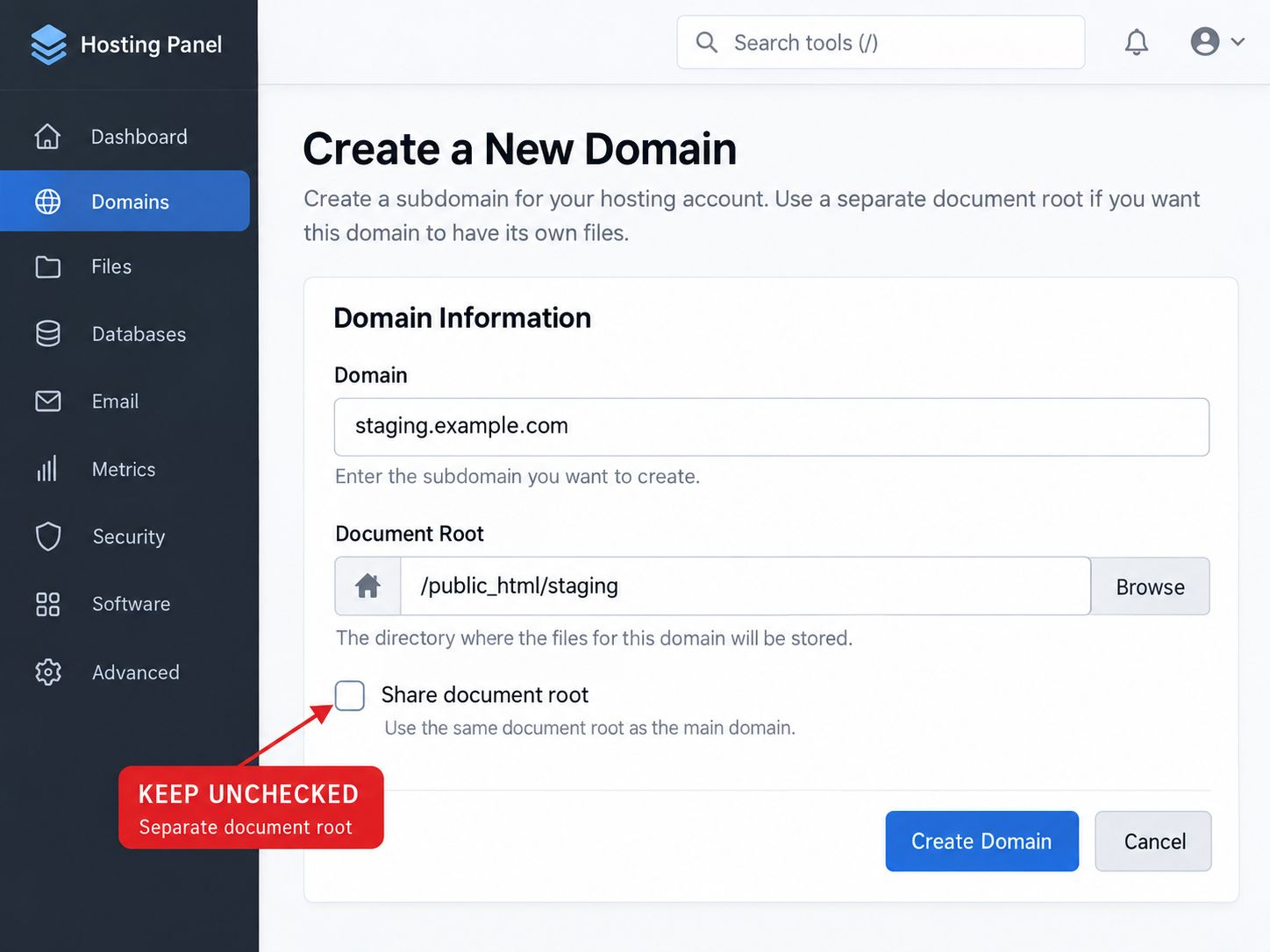
Your staging hostname needs its own document root. If you share public_html, the new hostname may simply serve the same underlying files as production.
After submitting, confirm that cPanel created a separate location for the subdomain.
For example, production might use:
while staging could use something similar to:
The exact path can vary. Separation is what matters.
If the staging hostname shares the live site’s document root, you have not created a properly isolated staging environment.
Add the DNS Record
Creating the subdomain on the web server and making the hostname resolve in DNS are separate tasks.
If your domain uses Blacknight’s newer DNS nameservers, Blacknight instructs users to open the domain’s DNS zone and create an A record for the staging hostname.
The result is conceptually:
| Type | Name | Destination |
|---|---|---|
| A | staging | Your Blacknight hosting IP |
Use the server IP from your own Blacknight account.
Do not copy an IP address from a tutorial.
If another provider controls your DNS, such as a third-party DNS service, create the record there instead.
Then wait for DNS to resolve before debugging WordPress.
If staging.example.com still points to the wrong server, changing WordPress settings will not solve the problem.
For sites using an additional proxy/CDN layer, the engineering resources may help you separate DNS problems from caching or proxy behaviour.
Confirm HTTPS Before Replacing WordPress URLs
Blacknight currently includes Let’s Encrypt support with its newer WordPress hosting plans. Automatic certificate issuance depends on the hostname resolving to the server.
Once DNS is working, visit:
and confirm the certificate is valid.
Doing this before the final WordPress URL replacement avoids changing:
to:
only to replace everything again when HTTPS becomes available.
Starting with the correct final staging URL keeps the clone cleaner.
Now Decide How You Want to Clone WordPress
There are three sensible routes. None is automatically best for every site.
Route 1: Use a Hosting/Toolkit Clone Feature
Use this when your actual Blacknight interface exposes a cloning feature suitable for the source and staging destination.
Blacknight’s published Plesk WordPress Toolkit cloning workflow creates a complete copy of the WordPress files, database, and settings and can use a new staging subdomain as the destination.
Read Blacknight’s WordPress Toolkit cloning documentation if that Plesk workflow matches your environment.
The advantage is convenience.
The risk is becoming careless because the process has a button.
Always confirm the source and destination before cloning. An existing destination can contain data you do not want overwritten.
Route 2: Clone the Site Manually
Choose this when you want full control or no suitable automated clone feature is available.
You will copy:
Files: production WordPress files → staging document root
Database: production database → new staging database
Then update the staging copy’s database credentials and URLs.
Route 3: Use a WordPress Staging/Migration Plugin
A plugin can simplify file copying, database cloning, serialized-data replacement, authentication, and sometimes deployment.
The trade-off is that feature availability varies.
A plugin may create staging only in a subdirectory in its free version while requiring a paid version for custom subdomains, remote servers, or push-to-live features.
Do not install a staging plugin simply because an article labels it “one click.” Check whether the exact destination and deployment workflow you need are supported.
The platform comparison resources can be useful when evaluating alternative tools or workflows.
Manual Method: Copy the WordPress Files
If you chose the manual route, copy the live WordPress installation into the staging document root.
That generally means copying:
wp-adminwp-contentwp-includeswp-config.php.htaccess- WordPress root files
Make sure hidden files are included.
Do not start editing the production wp-config.php.
Copy it first.
Then modify only the staging copy.
For sites with custom rewrite or protection rules, the developer utilities can help you inspect the type of configuration you are working with.
Create a Separate Staging Database
Create a new MySQL database and database user for staging.
For example:
| Environment | Database |
|---|---|
| Production | account_live |
| Staging | account_stage |
Blacknight’s current hosting documentation confirms that WordPress cPanel plans provide MySQL database management and phpMyAdmin.
Give the staging database user access to the staging database.
Then export the live database and import that copy into the new staging database.
Stop and Check Before Importing
Confirm that the selected destination database is the new staging database.
This is one of those moments where moving slowly is faster than restoring an overwritten database later.
Point the Staging WordPress Copy to Its New Database
Edit the wp-config.php inside the staging document root.
Update:
DB_NAMEDB_USERDB_PASSWORDDB_HOST
Blacknight’s current migration documentation for its WordPress Hosting platform uses localhost as DB_HOST in that documented cPanel migration workflow, but use the database details applicable to your account rather than changing values blindly.
Before loading staging, compare:
That single check catches one of the highest-risk staging mistakes.
Replace the Live URL with the Staging URL
Your copied database still contains references to:
Those references now need to become:
Use a WordPress-aware search-and-replace tool or migration process that handles serialized data correctly.
Do not simply open an SQL export and replace every instance of the domain in a text editor.
WordPress themes, page builders, widgets, options, and plugins can store serialized values. Changing strings without handling serialization correctly can corrupt those values.
After replacing URLs, check:
- Homepage and inner pages
- Media
- Menus
- Page-builder content
- Widgets
- Theme options
- Forms
- Custom post types
For more advanced WordPress architecture considerations, see the WordPress architectural deep dive.
Protect Staging Before You Start Testing
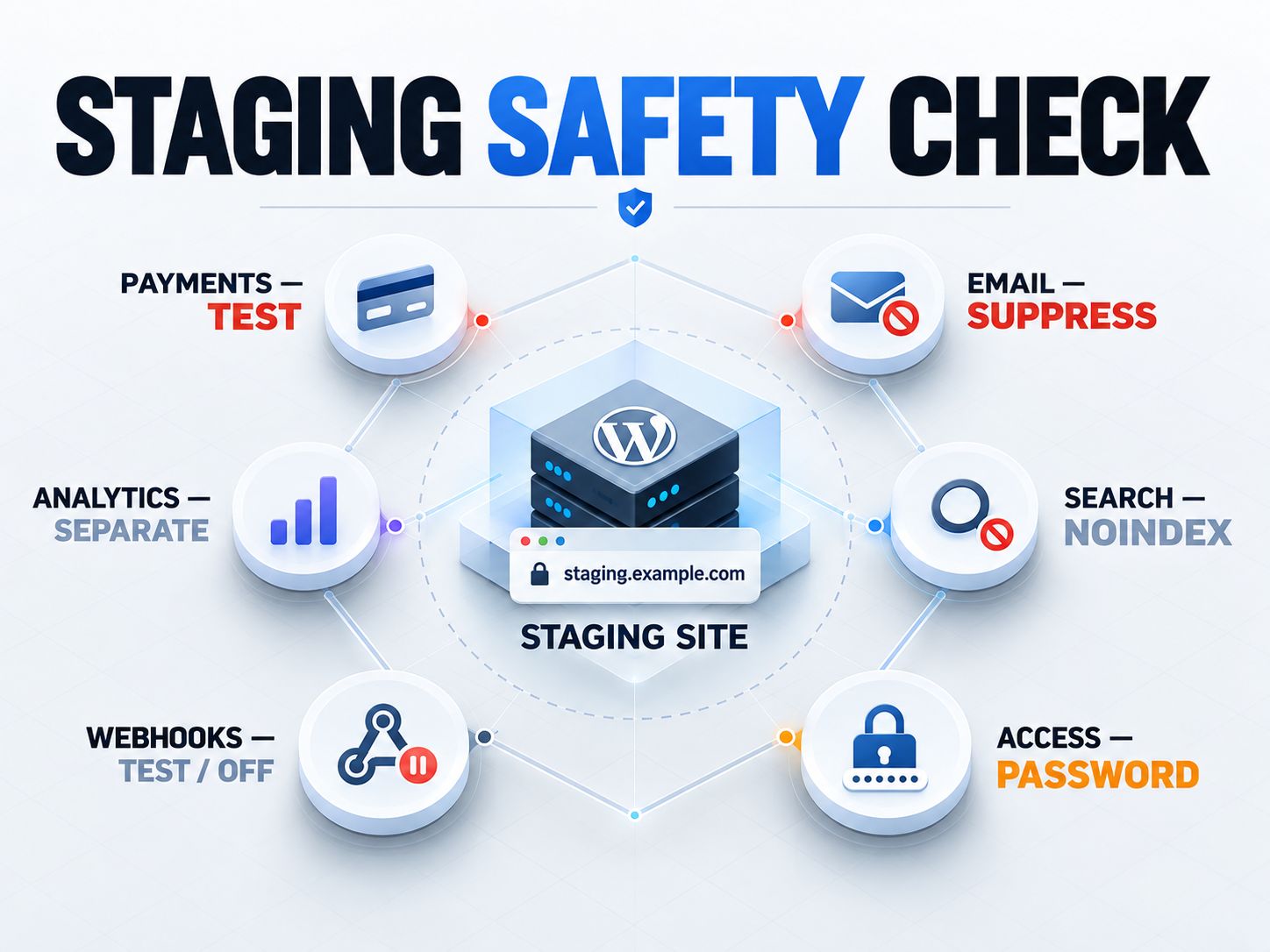
A staging URL should not behave like a second public production site.
Use two different types of protection:
Search Protection
Tell search engines not to index the staging site.
WordPress’s Discourage search engines from indexing this site option can be part of this.
Access Protection
Restrict who can actually open the staging site.
On current Blacknight WordPress Hosting, cPanel’s Directory Privacy feature can password-protect a directory. Blacknight also documents a WordPress-specific .htaccess adjustment using:
when password protection requires it.
These protections solve different problems.
Noindex is not a password.
A staging site can be excluded from search results and still be publicly accessible to anyone who knows the URL.
Disable Production Actions on Staging
This step matters more on complex WordPress sites than most staging tutorials suggest.
The cloned site may contain the same integrations as production.
Before testing, inspect anything that can affect a real person or external system.
| Feature | What to do on staging |
|---|---|
| Payment gateway | Use sandbox/test mode |
| WooCommerce emails | Prevent accidental customer mail |
| SMTP | Redirect or suppress test email |
| CRM | Stop test leads entering production |
| Webhooks | Disable or point to test endpoints |
| Newsletter integrations | Prevent real subscriptions/campaign actions |
| Scheduled imports | Pause where necessary |
| External API keys | Use test credentials when available |
| Analytics | Avoid polluting production reports |
WooCommerce deserves particular care because orders, stock, customer records, and subscriptions may continue changing on production while the staging database remains frozen at the time of the clone.
The WooCommerce comparison and cost analysis is useful if your staging work involves its wider ecommerce stack.
How Closely Should Staging Match Production?
Close enough that your test results are meaningful.
Compare:
| Layer | What should normally match |
|---|---|
| WordPress | Same starting version |
| Theme | Same version/configuration |
| Plugins | Same versions before testing upgrades |
| PHP | Same unless PHP itself is being tested |
| Database | Production copy at clone time |
| PHP extensions | Same where relevant |
| Server behaviour | As close as practical |
| HTTPS | Enabled |
| Cache layer | Reproduce when it affects the test |
Not every brochure site needs a laboratory-perfect replica.
But if you are debugging something affected by PHP, caching, server configuration, or performance, infrastructure differences can produce misleading conclusions.
For performance-related staging work, see optimizing Core Web Vitals on shared hosting.
If your WordPress installation uses a more decoupled frontend, the server-side rendering vs static islands guide can help you identify which layer actually needs to match.
What Should You Test Before Going Live?
Do not use “the homepage opens” as your acceptance test.
Test the parts of the website that would cause the most damage if they failed.
For most WordPress sites, that means:
- Navigation
- Mobile layout
- Important templates
- Forms
- Login/logout
- Password reset
- Search
- Media
- Admin editing
- JavaScript console errors
- PHP/server errors
For WooCommerce, also test:
- Product pages and variations
- Cart
- Coupons
- Shipping
- Tax
- Checkout
- Test payment
- Transactional emails
- Customer account pages
For membership, booking, LMS, or subscription sites, test the workflows unique to those systems.
When your staging job is related to a WordPress release or platform change, the WebPlatformLab technical blog can help you check surrounding release information before deployment.
The Most Important Decision: How Should You Move Changes Back?
The correct answer depends on what changed while you were working.
Consider this example.
You clone an active WooCommerce store on Monday.
During the next four days, customers continue placing orders on production.
Meanwhile, you change the theme and checkout layout on staging.
By Friday, the staging database is four days old.
If you replace production with the entire staging database, you risk overwriting new orders, customers, inventory changes, subscriptions, and other live data.
So the deployment question is not:
“How do I push staging live?”
It is:
“Which changes need to move, and which production data must remain untouched?”
Deployment Decision Table
| What changed on staging? | Safer deployment approach |
|---|---|
| Theme PHP/CSS/JS | Deploy changed files |
| Custom plugin code | Deploy plugin/code changes |
| New plugin | Install/configure carefully on production |
| Small settings change | Reproduce manually when practical |
| Database schema migration | Use the plugin/app’s supported migration process |
| Static content on a quiet site | Selective database/content migration may work |
| Active WooCommerce orders/customers | Avoid replacing the entire live DB |
| Membership/bookings/user activity | Preserve production-generated records |
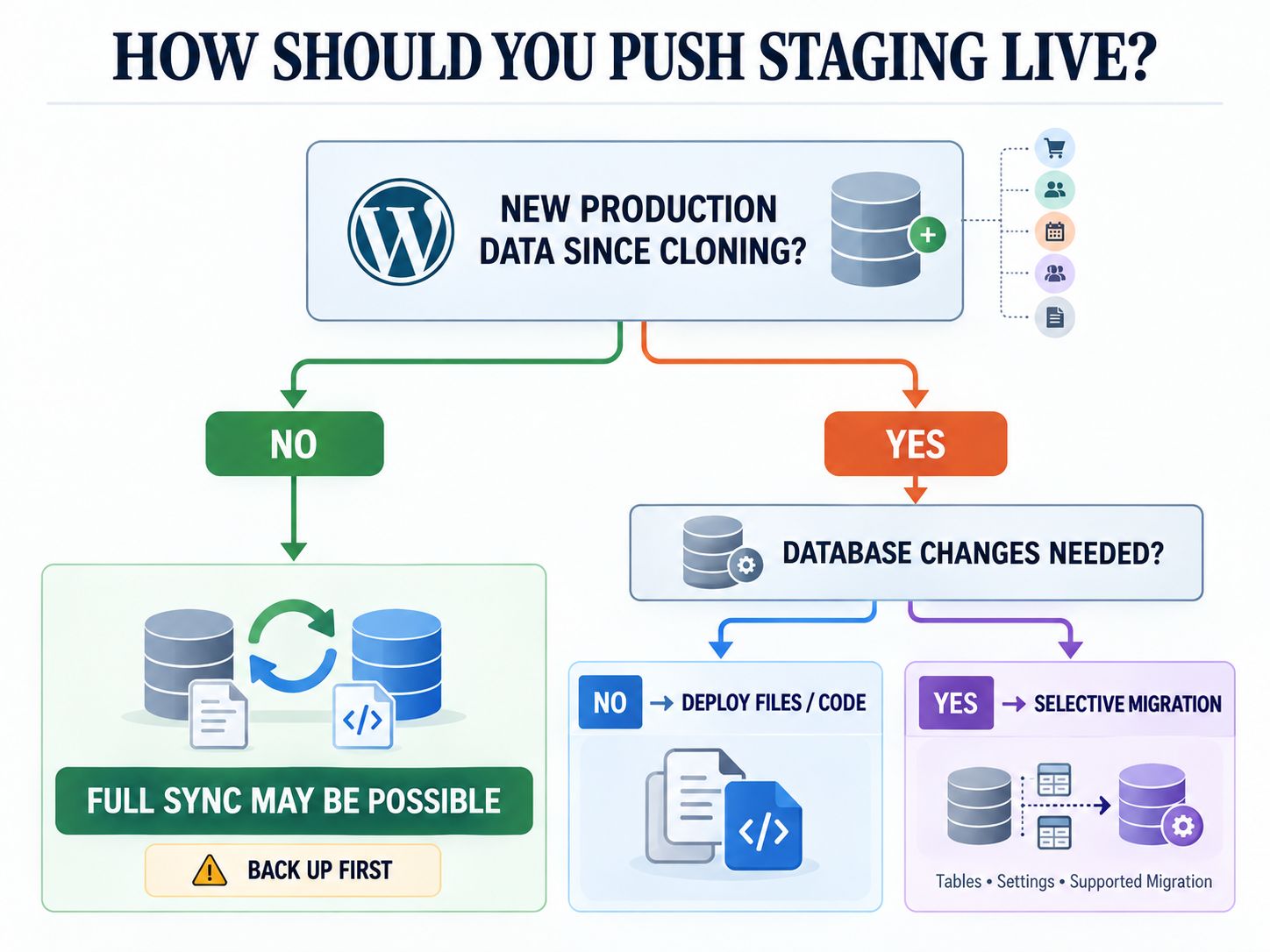
Blacknight’s Plesk WordPress Toolkit synchronization documentation also warns that synchronized source files and database tables overwrite their counterparts at the destination.
It can copy files, the database, or selected database tables.
That is useful—but it is not an intelligent merge of every production and staging change.
“Push to live” is not the same thing as “merge every change intelligently.”
Common Problems During a Blacknight Staging Setup
staging.example.com Does Not Resolve
Check the DNS A record first.
Make sure it points to the hosting server that actually contains the staging site.
The Staging Hostname Displays the Live Site
Check the document root.
If the staging domain shares public_html, both hostnames may be serving the same files.
Staging Redirects to the Production Domain
Check:
homesiteurl- Redirect plugins
- Security plugins
.htaccess- Cache/CDN rules
- Hard-coded URLs
Changes on Staging Appear on Production
Stop testing and check wp-config.php.
The staging copy may still be connected to the live database.
Images or Page-Builder Content Still Reference Production
Run a serialized-data-aware search-and-replace and then clear the relevant caches.
HTTPS Is Not Available Yet
Confirm that the staging hostname resolves to the Blacknight hosting server before diagnosing certificate issuance.
Password Protection Causes a 401 Problem
Review Blacknight’s current WordPress-specific password-protection instructions and its documented ErrorDocument 401 default adjustment.
For deeper stack troubleshooting, the technology checker can help identify whether caching, server software, CDN behaviour, or another platform layer is involved.
Is a Free Blacknight WordPress Staging Setup Possible?
Yes, depending on what you mean by “free.”
You normally do not need to buy a second domain because:
uses your existing domain.
You can also build a staging copy manually using the hosting account’s file and database tools without buying a dedicated staging plugin.
However, available disk space, database limits, hosting-plan restrictions, and plugin features still matter.
A free staging plugin may support cloning inside the existing WordPress environment but reserve custom subdomains, remote servers, automated pushes, or advanced deployment features for a paid edition.
So the useful question is not simply:
“Is staging free?”
Ask instead:
“Can my current Blacknight plan create the staging location I need, and does my chosen cloning method support it?”
Recommended Workflow
For a conventional Blacknight WordPress Hosting site, this is the sequence I would use:
- Back up production
- Record the production document root and database name
- Create
staging.example.comwith a separate document root - Configure DNS
- Confirm HTTPS
- Choose Toolkit, manual cloning, or a suitable plugin
- Give staging its own database
- Update the staging database credentials
- Replace URLs safely
- Password-protect and noindex staging
- Disable real payments, mail, webhooks, and other production actions
- Test
- Decide exactly what needs to move back to production
- Take a fresh production backup immediately before deployment
The order matters because it makes errors easier to isolate.
A DNS problem stays a DNS problem. A database problem stays a database problem. A redirect problem can be investigated after the underlying host and database are known to be correct.
For more implementation-focused WordPress content, the tutorials archive and performance guides are natural next steps.
Frequently Asked Questions
How do I create a WordPress staging subdomain on Blacknight?
On current Blacknight WordPress Hosting, open cPanel, go to Domains → Create a New Domain, enter a hostname such as staging.example.com, and leave Share document root unchecked. Then create the appropriate DNS record and clone WordPress into the staging location.
Does Blacknight WordPress Hosting use cPanel?
Current Blacknight documentation identifies its WordPress Hosting plans on the newer platform as cPanel-based.
Does Blacknight provide WordPress Toolkit?
Blacknight documents WordPress Toolkit access for current WordPress Hosting through cPanel. It also maintains separate Plesk WordPress Toolkit documentation, including Clone and Sync functionality, for supported Plesk environments.
Do not assume a specific Clone button exists until you check your own account.
Does the staging site need a separate database?
For normal staging isolation, yes.
A separate database prevents ordinary staging changes from directly modifying production data.
Can I use the same files for live and staging?
That defeats much of the reason for creating staging. The staging subdomain should normally have a separate document root and its own copy of the WordPress files.
Should I block Google from staging?
Yes, but search exclusion should not be your only protection.
Use appropriate indexing directives and access protection when staging should be private.
Does staging need HTTPS?
Yes. HTTPS gives you a more production-like test environment and protects traffic such as WordPress logins.
Can I create Blacknight WordPress staging without a paid plugin?
Yes. A manual file/database clone can be created with ordinary hosting tools if your plan has sufficient resources.
Can I push the entire staging database back to an active WooCommerce site?
Only if you have carefully determined that overwriting production data is safe.
On a store receiving new orders or customers, a full replacement is commonly the wrong deployment approach.
How do I know staging is ready?
A useful final check is:
- Different document root? Yes.
- Different database? Yes.
- HTTPS working? Yes.
- Access restricted? Yes.
- Search indexing discouraged? Yes.
- Payments/emails/webhooks safe? Yes.
- Critical workflows tested? Yes.
- Deployment plan chosen? Yes.
If those answers are clear, you have a staging environment you can actually trust.
Final Thoughts
The difficult part of a Blacknight WordPress staging subdomain setup is not creating the word staging in front of a domain.
The real job is separation.
The staging hostname needs its own document root. WordPress needs to use a separate database. The environment needs to be protected from search engines and unintended visitors. Production integrations need to be neutralized before testing. And when the work is finished, you need to move only the changes that belong on production.
That last point matters most on stores, memberships, booking systems, learning platforms, and any website where new data continues to arrive while you are working.
Build staging so you can experiment freely.
Deploy from it as if production data matters—because it does.
If you use Blacknight and see a different cPanel, Plesk, or WordPress Toolkit interface than the one described here, share the hosting plan and interface in the comments. That information can help identify the correct workflow for other Blacknight users too.