

Quick Answer: Go to JetEngine → Query Builder → Add New → Terms Query, select your taxonomy, open Parent/Child, and enter the parent term ID in Parent. Then apply that query to a Terms Listing Grid. For a dynamic archive or nested listing, replace the fixed ID with the current/queried term’s dynamic value.
How Does JetEngine Pull Child Categories?
JetEngine pulls child categories by querying hierarchical WordPress taxonomy terms and restricting the result according to a parent term.
The most important part is choosing the correct query condition.
| Setting | What it returns | Best use |
|---|---|---|
| Parent = term ID | Direct children only | Parent → child category list |
| Parent = 0 | Top-level terms only | Main category directory |
| Child Of = term ID | Descendant terms below a parent | Multi-level taxonomy tree |
| Dynamic Parent | Children of the current/queried term | Dynamic archives and templates |
| Childless | Terms without children | Lowest-level categories |
Crocoblock’s current Terms Query documentation confirms that the Parent field limits results to direct child terms, while Child Of can retrieve child terms beneath a specified category.
Key Point: If your hierarchy is Technology → WordPress → Plugins, using Parent = Technology ID returns WordPress as a direct child. If you need terms deeper in the hierarchy as well, use Child Of instead.
If you’re learning how WordPress changes can affect plugins and dynamic site functionality, the WordPress architectural deep dive provides useful background.
Step 1: Make Sure Your JetEngine Taxonomy Is Hierarchical
Before creating a query, confirm that the taxonomy actually supports parent-child relationships.
A hierarchy such as:
only works when the taxonomy is hierarchical.
If you created a custom taxonomy through JetEngine, open:
WordPress Dashboard → JetEngine → Taxonomies
Edit your taxonomy and verify that it is configured to support hierarchical terms. Then make sure your terms have actually been assigned to the correct parents.
Warning: A query cannot manufacture a parent-child relationship. If every taxonomy term is top-level, JetEngine has no child categories to retrieve.
This is one of the first things I check when debugging JetEngine taxonomy listings. A surprising number of apparent Query Builder problems are actually caused by the term hierarchy itself.
For broader WordPress implementation guidance, the WordPress and web development tutorials section contains additional practical guides.
Step 2: Create a Terms Query in JetEngine Query Builder
The recommended setup starts in Query Builder.
Navigate to:
WordPress Dashboard → JetEngine → Query Builder → Add New
Give the query a descriptive name such as:
Set:
Then open the General tab and select the taxonomy containing your parent and child terms.
For example:
or:
You can also configure ordering, empty-term behavior, pagination, and other conditions here.
JetEngine’s Terms Query is specifically designed for creating customizable lists of taxonomy terms rather than posts.
Pro Tip: Use descriptive query names such as Current Category Children, Tool Category Children, or Direct Child Terms. Once a JetEngine project contains dozens of queries, generic names such as “Query 1” become difficult to maintain.
This kind of structured configuration is especially useful in larger projects involving website architecture and reusable dynamic components.
Step 3: Use Parent to Pull Direct Child Categories
Now open the Parent/Child section of your Terms Query.
Suppose your taxonomy contains:
If you want only the immediate children of AI Tools, enter:
Your expected result is:
It will not automatically return grandchildren when you’re restricting the query to direct children with Parent.
Crocoblock describes the distinction explicitly: Parent retrieves direct child terms while excluding grandchildren.
What does Parent = 0 do?
Setting:
returns top-level terms—terms that do not have another taxonomy term as their parent.
This is useful for building the first level of a category directory.
For example:
Share This Insight: “In a JetEngine Terms Query, Parent = 0 is for top-level terms; a specific Parent ID is for that term’s direct children.”
Step 4: Use Child Of When You Need Descendants
Parent and Child Of should not be treated as interchangeable.
Imagine this structure:
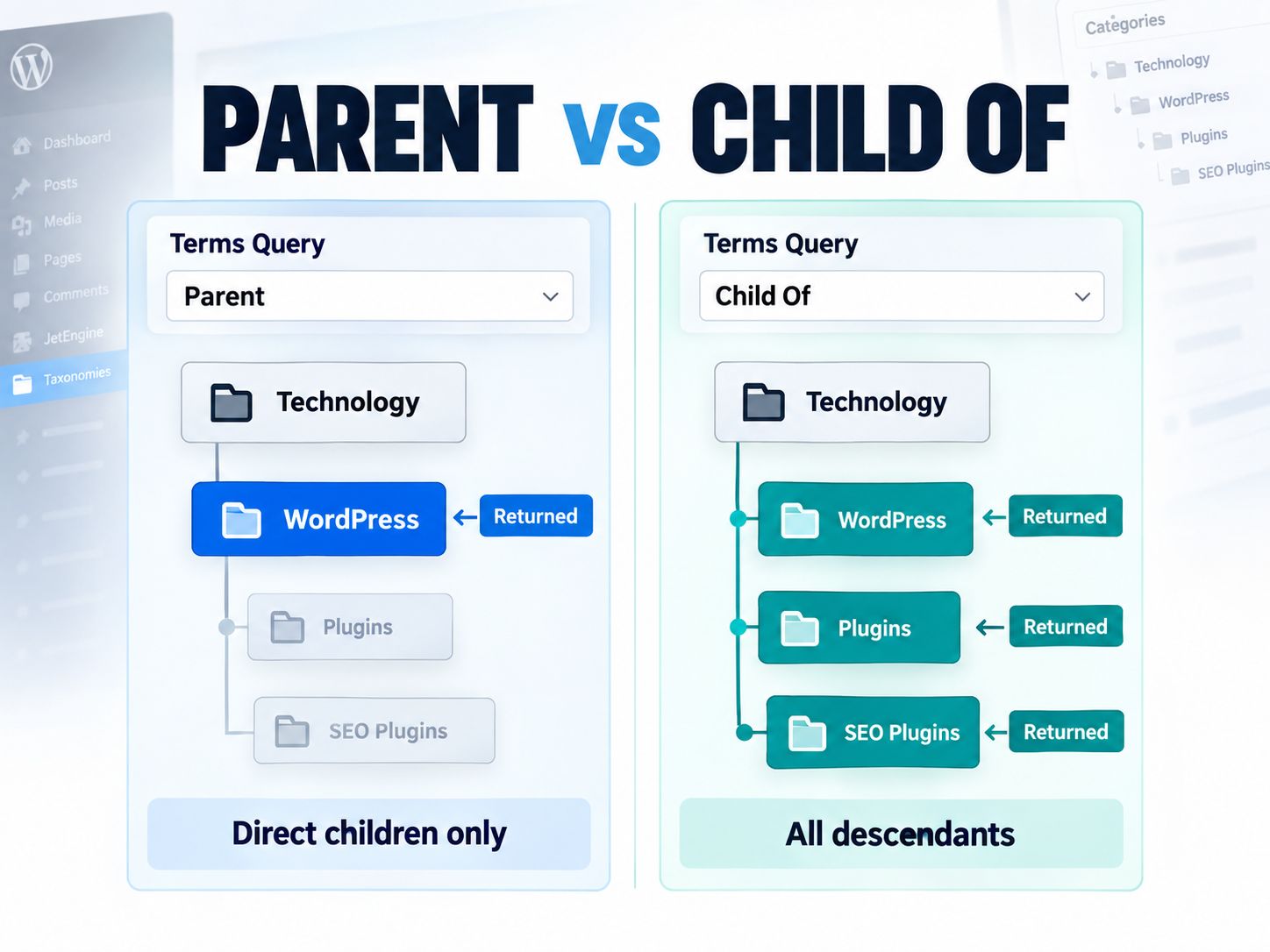
If you need only the level directly below Technology, use Parent.
If your implementation needs descendants deeper within the Technology branch, Child Of is the more appropriate condition.
Crocoblock documents Child Of as a way to add child terms beneath a specified category to the Terms Query.
| Goal | Setting |
|---|---|
| Show top-level categories | Parent = 0 |
| Show direct children | Parent = parent term ID |
| Query a deeper descendant branch | Child Of = parent term ID |
| Dynamically show current category’s children | Dynamic value in Parent |
| Show terminal categories | Childless |
Common Mistake: Do not use Child Of simply because the phrase sounds like “show the child.” If you specifically need one level of children, Parent gives you tighter control.
Step 5: Create a Listing for the Taxonomy Terms
The query determines which terms JetEngine retrieves. You still need a Listing to determine how those terms look on the frontend.
Go to:
JetEngine → Listings/Components → Add New
Choose a listing source for taxonomy terms and select the relevant taxonomy.
Inside the Listing Item, you can display elements such as:
- term name;
- term image;
- description;
- custom taxonomy meta;
- term URL;
- icon;
- post count.
For a category card, a simple layout usually works best:
Keep query logic separate from presentation whenever possible. It makes troubleshooting significantly easier.
If you’re exploring more advanced dynamic development workflows, WebPlatformLab’s engineering guides cover related implementation topics, while the code generators section provides practical developer utilities.
Step 6: Apply the Child Category Query to the Listing Grid
Now edit the page or template where the categories should appear.
Add your Listing Grid and choose the Terms Listing you just created.
Then find:
Custom Query → Use Custom Query
Enable it and select:
JetEngine’s Listing Grid supports selecting a custom Query Builder query through its Use custom query option.
Your Listing Grid should now display only the terms returned by your child-category query.
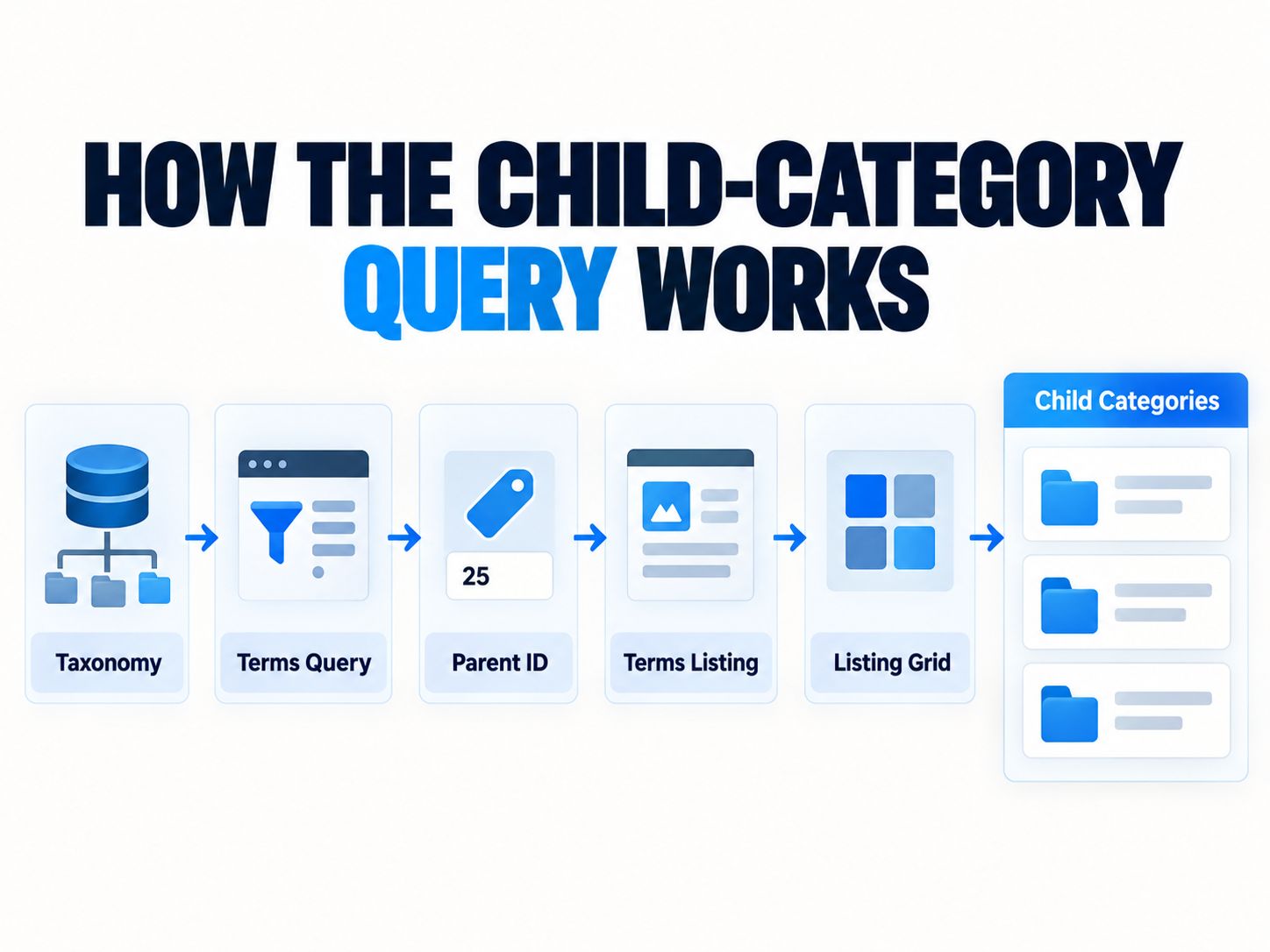
Expected result
If:
and term 25 contains three direct children, the grid should contain those three child categories rather than every term in the taxonomy.
Real Example: On a directory site, I generally separate this into three layers:
That separation matters. When something fails, I can determine whether the problem comes from the taxonomy relationship, the query, or the frontend listing instead of debugging everything at once.
This separation between data, query logic, and presentation also follows the broader principles discussed in server-side rendering vs static islands.
How to Dynamically Pull Children of the Current Category
For reusable category/archive templates, hard-coding a term ID is usually the wrong approach.
You want this:
rather than:
on every template.
Open your Terms Query → Parent/Child → Parent field and use the available dynamic-value control. Configure it to retrieve the ID of the currently queried term where that context is available.
Conceptually, the resulting query becomes:
Suppose a visitor opens:
and AI Tools has term ID 25.
JetEngine effectively evaluates:
If the visitor then opens another parent term whose ID is 47, the same template can evaluate:
No second template is required.
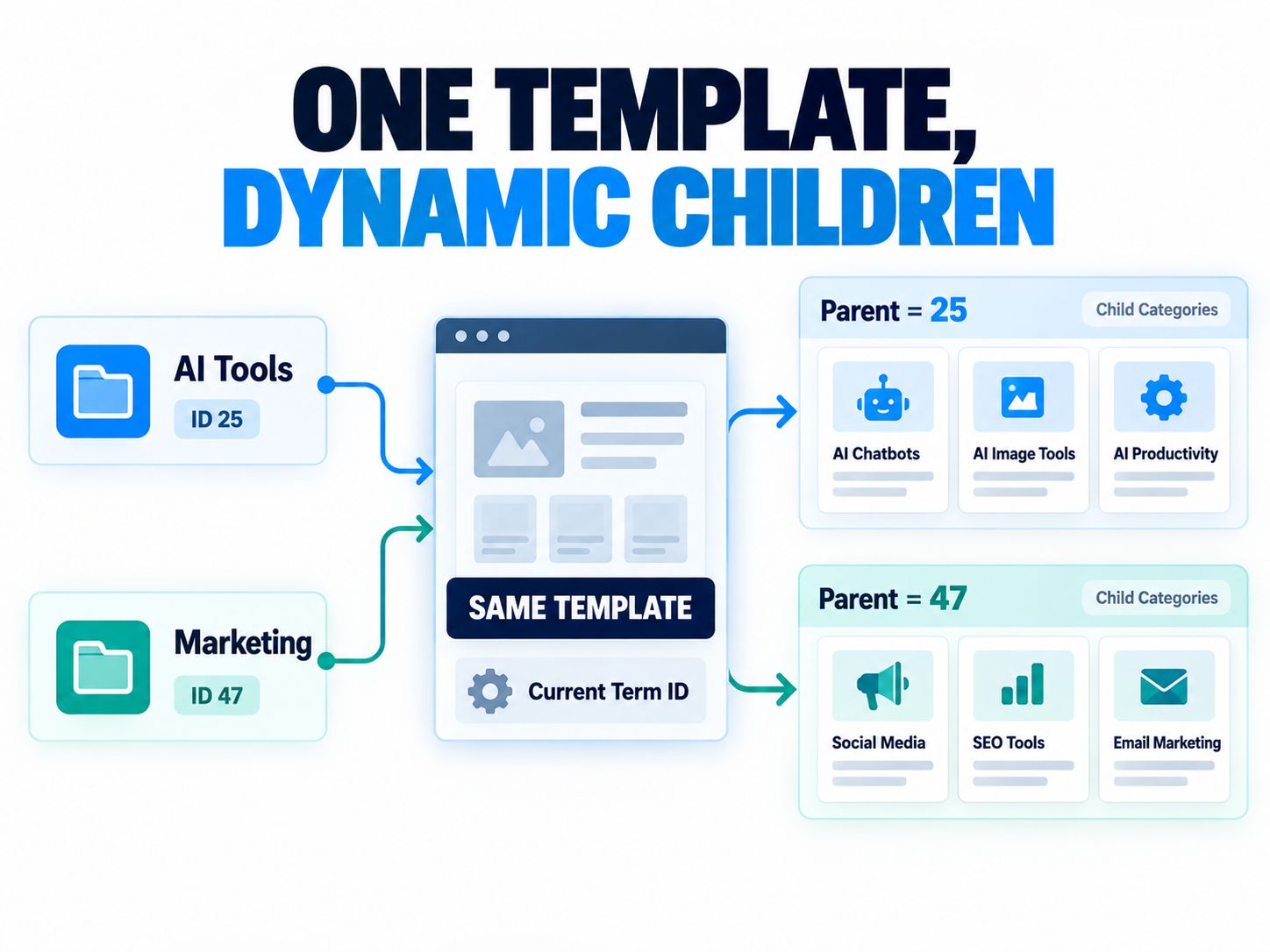
Crocoblock demonstrates this type of dynamic child-category workflow in its nested-listing documentation, where dynamic current IDs can be passed into Parent/Child query conditions.
Expert Advice: Use dynamic context whenever the template will be reused across multiple taxonomy terms. Hard-coded IDs are acceptable for a one-off static section, but they create unnecessary maintenance in archive templates and scalable directories.
How to Create Parent → Child Nested Listings
A more advanced requirement is displaying every parent category with its own child categories beneath it.
For example:
The clean architecture is:
Query 1: Parent terms
Create a Terms Query using:
That retrieves only top-level terms.
Query 2: Child terms
Create another Terms Query for the same taxonomy.
In its Parent condition, pass the current parent term’s ID dynamically.
Create the nested listing
Inside your parent-term Listing Item, insert another Listing Grid configured with the child-term listing and the child Terms Query.
The result is a reusable hierarchy.
Crocoblock’s nested-listing guide documents this general pattern: create a Terms Query, use dynamic context, and apply that query to a nested Listing Grid.
This type of structured dynamic content is one reason WordPress remains useful for complex CMS implementations. You can explore additional website-building and CMS tutorials on WebPlatformLab.
Share This Insight: “For scalable JetEngine taxonomy directories, build one parent query and one dynamic child query instead of creating separate listings for every category.”
JetEngine Macros: Do You Need One for Child Categories?
Not always.
This is an important distinction because searches for this problem often lead users toward JetEngine macros, even when a normal hierarchical taxonomy query is enough.
If your categories have a standard WordPress taxonomy hierarchy:
use the Parent/Child conditions in Terms Query.
If your objects are connected through a JetEngine Relation, the Related Items macro may be appropriate.
For a relation-based Terms Query, Crocoblock documents adding the Related Items macro to the Include field and configuring the relation, object direction, and initial object ID.
Think of the difference this way:
| Data relationship | Recommended approach |
|---|---|
| Normal taxonomy parent → child | Terms Query → Parent/Child |
| Current taxonomy parent → child | Dynamic Parent value |
| JetEngine Relation | Related Items macro |
| Post → assigned taxonomy terms | Terms Query with object/post context |
| Multi-level category directory | Parent/Child + nested Listing |
AI Insight: The word “child” can describe two different structures in JetEngine: a hierarchical taxonomy child or the child side of a JetEngine Relation. Identify which relationship you actually have before choosing a macro.
For additional developer-focused resources, browse the developer utilities available on WebPlatformLab.
How JetEngine Taxonomy Structure Affects the Query
A JetEngine taxonomy is still based on WordPress taxonomy concepts, so the underlying hierarchy matters.
For example:
JetEngine can use those relationships when querying terms.
But this:
does not create a hierarchy merely because the names conceptually relate to each other.
You must explicitly establish:
in the taxonomy.
Key Point: Your Listing Grid reflects the taxonomy data returned by the query. When the hierarchy is wrong in WordPress, changing the Listing Grid design will not fix it.
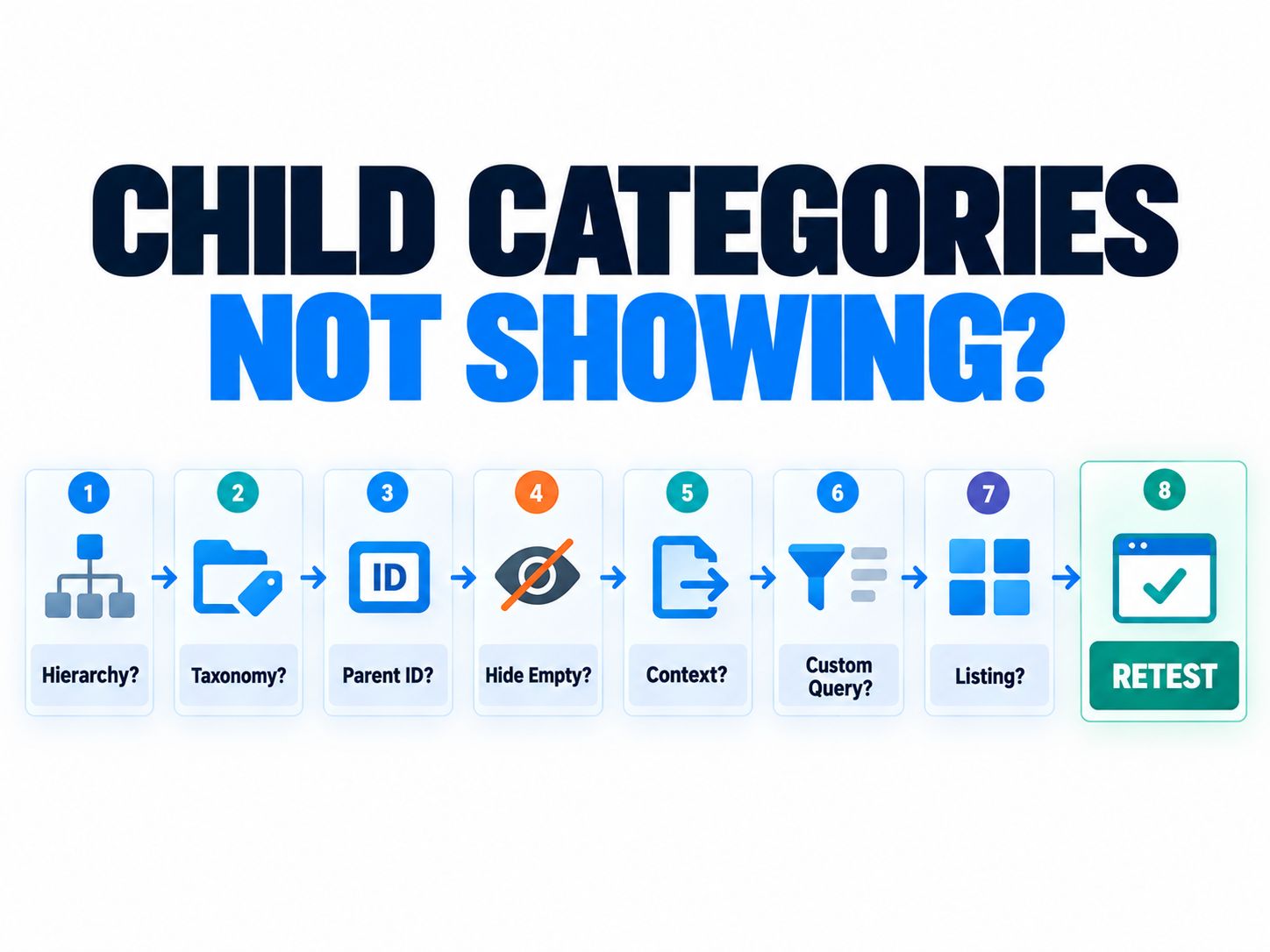
Why Is JetEngine Not Showing the Child Categories?
When a child-category Listing Grid is empty, check the data and query before changing the design.
1. The child term has the wrong parent
Open the taxonomy and verify the child term’s parent.
If you query:
but your child term belongs to term 18, it will not appear.
2. You selected the wrong taxonomy
Your Listing and Terms Query should target the intended taxonomy.
For example, querying:
will not retrieve terms from:
3. Hide Empty is enabled
This setting frequently causes confusion.
If Hide empty is enabled, terms without assigned objects may disappear from the result. Crocoblock documents this behavior in its Terms Query settings.
During debugging, temporarily disable it.
4. You used Parent instead of Child Of
If the term you expect is a grandchild rather than a direct child, a Parent query targeting the top-level category may intentionally exclude it.
Consider:
For a direct-child query against AI Tools, Writing qualifies; Paraphrasers does not.
5. Your dynamic ID has the wrong context
Dynamic values depend on context.
A Current/Queried Term value makes sense when JetEngine actually has a taxonomy term available as the current object. If the same query is executed somewhere with a different object context, it may receive the wrong ID or no usable value.
6. The custom query is not enabled
Creating a Query Builder query does not automatically apply it to every Listing Grid.
Verify:
7. The Listing source is wrong
If you’re displaying taxonomy terms, make sure you created an appropriate Terms Listing rather than accidentally designing the listing around posts.
Common Mistakes: The fastest troubleshooting order is:
That order usually prevents wasting time styling a Listing Grid whose query is returning zero records.
For a broader pre-publishing review process, see the WordPress website quality control guide.
Parent vs Child Of in JetEngine
This distinction deserves its own reference because it is the most important part of the setup.
| Requirement | Parent | Child Of |
|---|---|---|
| Direct children | ✅ | Can be broader |
| Grandchildren | ❌ | ✅ |
| Top-level terms | Parent = 0 |
— |
| One-level navigation | ✅ | Usually unnecessary |
| Deep taxonomy directory | Limited | ✅ |
| Precise immediate-child grid | ✅ | — |
For most searches around how to pull a child category in JetEngine, start with Parent.
Move to Child Of only when your use case genuinely requires a deeper hierarchy.
If you’re comparing different approaches to building websites and dynamic interfaces, WebPlatformLab’s platform comparisons provide additional context.
Can You Filter Child Categories Further?
Yes. Once the parent-child condition is working, a Terms Query can apply additional restrictions.
For example, you can:
- include or exclude selected term IDs;
- exclude a term tree;
- order terms by name or ID;
- hide empty terms;
- filter using taxonomy meta;
- limit the number of returned terms;
- paginate results.
JetEngine’s current Terms Query includes General, Include/Exclude, Parent/Child, and Meta Query controls, so hierarchical filtering can be combined with other conditions.
For example:
can produce an alphabetically ordered set of non-empty direct children for the current term.
When query-heavy pages are part of a larger WordPress build, frontend speed also matters. The guide to optimizing Core Web Vitals on shared hosting covers related performance considerations, and the performance section contains additional optimization resources.
What If the Categories Are Connected Through a JetEngine Relation?
This requires a different approach.
Suppose you have a JetEngine relation rather than a native taxonomy hierarchy.
For example:
In that situation, Parent = ID is not necessarily the correct mechanism because the relationship exists in JetEngine’s relation system rather than the taxonomy’s native parent field.
Create a Terms Query and open:
Include/Exclude → Include → Dynamic Tags/Macros → Related Items
Then configure the appropriate:
Crocoblock’s relation documentation describes this workflow for Terms Query results.
Pro Tip: Before touching Query Builder, ask one question:
“Is this a WordPress taxonomy hierarchy or a JetEngine Relation?”
That single distinction often determines the entire solution.
Practical Setup for a Dynamic Tools Directory
For a tools-directory website, a scalable structure might look like this:
Create one top-level Terms Query:
Then create one child Terms Query:
Use the second query inside your reusable nested listing.
Now adding a new category in WordPress does not require manually rebuilding the frontend.
That is much more maintainable than creating:
Blogger Tip: For directories, treat taxonomy structure as part of the site’s architecture—not merely as labels attached to posts. A well-planned hierarchy makes dynamic templates, filtering, breadcrumbs, navigation, and internal linking significantly easier.
WebPlatformLab’s SEO metadata tools and performance auditing tools are examples of how tool resources can be grouped into purpose-specific categories.
Static Parent ID vs Dynamic Parent ID
Use a static ID when the section always represents the same parent.
Example:
That is perfectly reasonable because the parent never needs to change.
Use a dynamic ID when one template serves multiple terms.
Example:
Then the template automatically adapts to the current archive.
| Situation | Recommended value |
|---|---|
| Homepage category section | Static ID |
| Dedicated landing page | Static ID can work |
| Taxonomy archive | Dynamic ID |
| Nested Listing | Dynamic current-object ID |
| Reusable template | Dynamic ID |
| One-off manual layout | Static ID |
This is the difference between merely making the query work and designing a JetEngine system that remains maintainable as the site grows.
A Simple Verification Test
Before styling anything, run a small controlled test.
Create:
Then create:
Apply it to a Terms Listing Grid.
The expected output is:
If that works, replace 100 with your required dynamic value.
If the static version works but the dynamic version fails, you have isolated the issue: the taxonomy and Listing Grid are functioning, while the dynamic context/value needs debugging.
Expert Advice: This static-first test is one of the most efficient ways to troubleshoot dynamic JetEngine queries. Test the simplest known value first; introduce dynamic context only after the base query returns the correct terms.
Our Perspective
For a normal hierarchical taxonomy, Query Builder → Terms Query → Parent is the simplest and most maintainable solution for pulling child categories in JetEngine.
Avoid adding relations or complicated macros when WordPress already stores the relationship natively.
For reusable archive templates and nested listings, however, the real improvement comes from replacing fixed parent IDs with the current term ID dynamically. That turns a one-off query into a reusable taxonomy system.
Share This Insight: “The scalable JetEngine pattern is simple: Terms Query + dynamic parent ID + reusable Listing Grid.”
Frequently Asked Questions
How do I pull a child category in JetEngine?
Create a Terms Query in JetEngine → Query Builder, choose your taxonomy, open Parent/Child, and place the parent category’s term ID in Parent. Apply that query to a taxonomy Terms Listing Grid.
How do I show only direct child categories in JetEngine?
Use the Parent field with the parent term’s ID. JetEngine documents this option as returning direct child terms while excluding grandchildren.
How do I show all child and descendant categories?
Use the appropriate Child Of/hierarchy settings instead of limiting the query to a single direct-parent level. The exact behavior should be tested against your taxonomy structure, especially when you have three or more levels.
How do I show only top-level categories in JetEngine?
Set:
This restricts the Terms Query to terms without a parent.
Can JetEngine dynamically get the current category’s children?
Yes. In a suitable taxonomy or listing context, pass the current/queried term’s ID dynamically into the query’s parent condition. Crocoblock demonstrates dynamic current-ID techniques in nested listing workflows.
Do I need JetEngine macros to pull child categories?
Usually not for a standard hierarchical taxonomy. Use the Terms Query’s Parent/Child settings. Macros such as Related Items are more relevant when data is connected through JetEngine Relations.
Why are empty child categories missing?
Check whether Hide Empty is enabled. When enabled, terms without associated content can be excluded from the results.
Can I use this with Elementor?
Yes. Create the Terms Query and Terms Listing, add a JetEngine Listing Grid in Elementor, enable Use Custom Query, and select your query.
Can I create nested parent and child category listings?
Yes. Create a parent Terms Query and a second child Terms Query, then insert the child Listing Grid inside the parent Listing Item. Crocoblock provides a documented nested-listing workflow for this pattern.
What is the difference between a JetEngine taxonomy hierarchy and a relation?
A taxonomy hierarchy uses native parent-child relationships between taxonomy terms. A JetEngine Relation explicitly connects supported objects such as posts, users, terms, or other data types. For a taxonomy hierarchy, use Parent/Child query controls; for a relation, you may need the Related Items macro.
Final Checklist
Before publishing your child-category layout, confirm:
- The taxonomy is hierarchical.
- Child terms are assigned to the correct parent.
- The Query Type is Terms Query.
- The correct taxonomy is selected.
- Parent is used when only direct children are required.
- Child Of is considered when deeper descendants are required.
- Hide Empty is configured intentionally.
- The Listing was created for taxonomy terms.
- Use Custom Query is enabled in the Listing Grid.
- Dynamic templates pass the correct current/queried term ID.
- Relation-based data uses relation logic instead of taxonomy-parent logic.
- The static-ID query works before you troubleshoot a dynamic-ID version.
Once those pieces are correct, pulling child categories in JetEngine becomes straightforward and reusable across category archives, directories, nested listings, and other dynamic WordPress templates.
Have you run into a JetEngine child-category setup that still returns the wrong terms? Share the taxonomy structure, query setup, and expected result in the comments—the exact hierarchy usually makes the problem much easier to diagnose.