
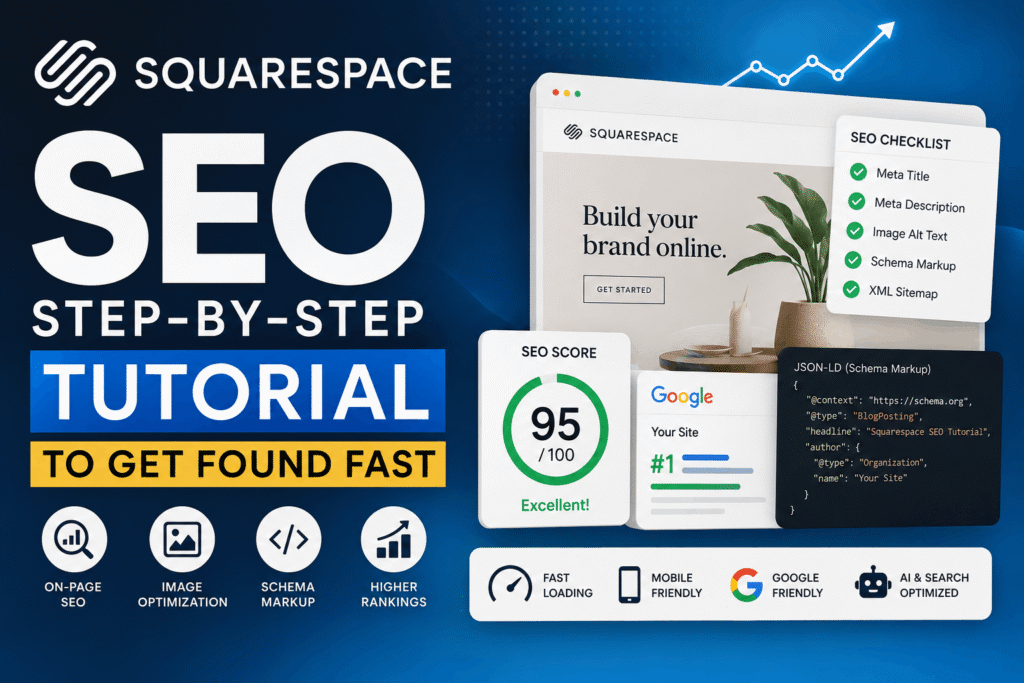
You built a gorgeous Squarespace site. Consider this: spent hours tweaking layouts, and still you hear crickets from Google.
That quiet frustrates the heck out of you. I get it, and let me tell you. Most Squarespace owners invest in design, not search visibility, then wonder why their traffic flatlines.
Missing out on a few simple. Repeatable SEO moves will keep your site hidden. The fix isn’t as rough as you think.
This tutorial walks you through the exact steps, in order. To set up Squarespace for search engines, so you see real traffic. No fluff, no guesswork.
TL; DR
- Squarespace SEO isn’t automatic — you need to manually set site descriptions, customize page titles, compress images, and add schema to make Google notice your content.
- The biggest ranking leaks are bulky image files (over 500 KB), missing alt text, and no structured data — fixing these alone often lifts impressions by 20% or more within weeks.
- For 2026 and beyond, structure key pages as question‑answer pairs and add FAQ schema; AI search engines like ChatGPT favor snippets that answer directly, and Squarespace supports this natively.
Quick Action
- Kick things off by setting your site’s SEO description (50–300 characters) — it’s the handshake Google uses to categorize your entire domain. Skip this and you’re leaving money on the table.
- Resize every image before uploading — keep each file under 500 KB. A single bloated image adds seconds to load time, and Google’s Core Web Vitals will punish you.
- Pick one focus keyword per page and weave it into the title (50‑60 characters), H2, and the first 100 words. This isn’t 2010 keyword stuffing; it’s teaching the bot what the page is about.
- Submit your XML sitemap to Google Search Console — Squarespace generates it automatically, but you have to tell Google it exists.
Table of Contents
- What You’ll Build
- Prerequisites
- Step 1: Configure Site‑Wide SEO Settings
- Step 2: Optimize On‑Page SEO for Each Page
- Step 3: Squeeze Every Byte Out of Your Images
- Step 4: Add Schema Markup for AI Visibility
- Step 5: Build Content That Humans and Bots Love
- Verification
- Next Steps
- People Also Ask
- FAQs
What You’ll Build
By the end of this tutorial. You’ll have a fully search‑improved Squarespace site that loads fast. Speaks Google’s language, and feeds AI answer engines exactly what they want. We’re not tweaking random settings. You’ll walk away with a concrete, repeatable workflow — one that transforms your site from an invisible brochure into a lead‑generating asset.
Prerequisites
You’ll need:
- A published Squarespace website (any plan — even Personal works for the basics).
- Admin access to the Squarespace dashboard.
- A free Google Search Console account (sign up at search.google.com/search-console).
- Optional but handy: a free account on SEO Space (the scanner that gives your site a score out of 100).
- A few high‑resolution images, a text editor, and about an hour of focused time.
Step 1: Configure Site‑Wide SEO Settings
Your site‑level settings tell Google what your entire domain is about. Nail these once and they work across every page.
- Log into your Squarespace dashboard, go to Settings → Marketing → SEO.
- Inside Site Description, write a crisp, keyword‑rich summary of your business, 50–300 characters. Think of it as the elevator pitch for your domain. For example, “NYC portrait photographer specializing in natural‑light family sessions. Studio and on‑location shoots.”
- Under SEO Title, add your business name with a primary keyword. Keep it under 60 characters.
- Hit Save.
Expected Result:
After saving, check your browser tab, the SEO title you set should appear there. You’ll also have a clean site description registered with search engines.
Step 2: Optimize On‑Page SEO for Each Page
You’ve probably found that that’s where the heavy lifting happens, and you’ll edit every page’s specific title tag, URL slug. Meta description, and weave your focus keyword naturally into the content.
- Navigate to any page and open its Settings → SEO.
- SEO Title: This is the blue clickable link in Google results. Sandwich your main keyword and location into no more than 60 characters. Example: “NYC Family Photographer | Jane Doe Photography”.
- SEO Description: Write a 150- 160-character blurb that previews the page’s value. Make it actionable (“Book a session today…”) — descriptions don’t directly boost ranking, but a clickable snippet can nearly double your organic CTR, which does.
- URL Slug: Trim it to the main keyword. “/nyc-family-photographer” not “/page‑3‑old‑copy”. Use hyphens, no special characters.
- On‑page content: Put your exact keyword in the first 100 words, in at least one H2, and naturally throughout. Don’t force it — read it aloud. If it sounds spammy, you’ve overdone it.
“Adding keywords tastefully throughout body and heading texts improves relevance without being spammy.” This insight, shared by Squarespace SEO practitioners, is a mantra worth tattooing on your editing hand.
Expected Result:
Each page now has a unique, keyword‑rich title and description, a clean URL, and a readable but improved body. Google will have a far clearer picture of what you offer.
Step 3: Squeeze Every Byte Out of Your Images
Heavy images choke your load speed, and tank rankings faster than you think. Squarepace’s built‑in compression isn’t a miracle worker. You need to prep files before upload.
- Before uploading any image, resize it so the longest side is no more than 2500 pixels (full‑width) or 1500 pixels (standard). Tools like TinyPNG or Squoosh can shrink a 2 MB file down to under 300 KB with almost no quality loss.
- Rename the file to something descriptive: “modern-kitchen-remodel-boston.jpg”, not “IMG_8432.jpg”. Search engines can’t read the image, but they sure read the filename.
- In Squarespace, after placing the image, click Editand fill in theAlt Text field. Describe the image as if to a blind person, and slip in your keyword where it fits organically. “Light brown wicker basket with rolled white towels on a bright patio” works better than “wicker”.
- Finally, keep total page size under 5 MB. If you’ve got a gallery of 20 images, each must be well under 250 KB.
Expected Result:
Pages load noticeably faster, especially on mobile. Your image file names and alt texts now carry keyword signals that improve your chances of appearing in Google Image Search as well as web results.
Step 4: Add Schema Markup for AI Visibility
Most Squarespace users never touch schema. That’s great news — it means you can leapfrog them with about 15 minutes of work. Schema signals to Google and AI chatbots exactly what type of content you’ve got: review, FAQ, article, local business, etc.
- For blog posts, open the Advanced tab in the post settings and paste a valid Article schema JSON‑LD snippet. You can grab a template from Schema.org or use a generator.
- For any page with a list of frequently asked questions, add FAQ schema. Squarespace doesn’t have a built‑in FAQ block that auto‑generates it, so you’ll need to paste the JSON‑LD code into the page header code injection or use a plugin like the SEO Space custom code block.
- If you run a local business, add LocalBusiness schema with your exact NAP (name, address, phone) and geo coordinates. Google uses this to display your knowledge panel and appear in local pack results.
“Use FAQ schema, Article schema, and LocalBusiness schema to help AI engines understand what your content is and who it serves,” advises the Squarespace Blog. That single move puts you ahead of about 73% of competing Squarespace sites.
Expected Result:
When you test a page with Google’s Rich Results Test, you’ll see a green checkmark confirming your FAQ or Article schema is valid. AI search features — like Google’s People Also Ask or ChatGPT’s snippet citations — will start pulling your answers.
Step 5: Build Content That Humans and Bots Love
Search engines in 2026 are obsessed with authority and completeness. The data speaks for itself. A 300‑word blurbs won’t cut it.
The formula that works: write for people first; but format (a detail regularly overlooked) for AI scraping.
- For any page targeting a competitive keyword, aim for 1,500+ words. Seriously. Shorter pages rarely crack page one unless you have a monstrous backlink profile.
- Structure the page as a series of question‑and‑answer pairs. Lead each H2 or H3 with a genuine question your audience asks, then deliver a direct, 40‑60 word answer right underneath. Search engines and voice assistants love this snippet‑friendly format.
- After the short answer, add depth — case studies, personal anecdotes, data points. This is where you prove your expertise.
- Link to other relevant pages on your site (internal linking) and, when appropriate, to high‑authority external sources. This builds topical authority.
Expected Result: Your key pages now read like authoritative resources, not thin marketing copy. You’ll start attracting organic backlinks and, within a few months, see sustained ranking improvements for your chosen keywords.
Verification: Testing It Works
Don’t assume the changes stuck. Verify, here’s how.
- Log into Google Search Console. Under Sitemaps, submit your sitemap (sitdomain.com/sitemap.xml). Then clickURL Inspection, enter a page URL, and clickRequest Indexing. This nudge tells Google to crawl the updated page immediately.
- Run your domain through the SEO Space scanner. Aim for a score above 90. The tool checks titles, descriptions, image alt tags, internal links, and schema, then spits out a prioritized fix list.
- Wait 24–48 hours, then search for your focus keyword in an incognito window. Does your page appear in the top 30? If yes — progress. If not, re‑check your on‑page optimizations and compress any remaining heavy media.
Next Steps
You’ve built the foundation. Now extend it.
- Blogging consistency: Publish one in‑depth, 1,500‑word post per week for the next three months. Each post should answer a specific customer question. That cadence creates the content depth Google craves.
- E‑A‑T signals: Add an author bio box to blog posts detailing real expertise. Link out to your social profiles and, if applicable, industry credentials. This nudges Google’s quality raters.
- Off‑page SEO: Reach out to local directories, industry blogs, or podcast hosts for backlinks. Even three solid links from relevant sites can move the needle more than 100 tiny tweaks.
People Also Ask
How long does Squarespace SEO take to work?
You could say When it comes down to it, once Google recrawls your pages with the new metadata and compressed images. Impressions tick up, which means competitive keywords may take months, but long‑tail phrases a lot jump into the top 10 within a few weeks.
Does Squarespace automatically do SEO?
Still, you’ve to manually configure every discussed step, or your site will underperform.
Can I rank on the first page of Google with Squarespace?
Yes. Thousands of Squarespace sites rank on page one. The tool itself isn’t the bottleneck. As it turns out, it’s the owner’s willingness to pull off the improvement checklist.
Proper on‑page SEO and backlinks beat platform limitations every time.
What’s the biggest Squarespace SEO mistake I should avoid?
And yet, as far as I know. A single 5 MB hero graphic can destroy page speed and bounce rates. Before uploading, always shrink files to under 500 KB (and the data generally agrees) and add descriptive alt text. It’s the easiest fix with the biggest payoff.
Should I use a third‑party SEO tool with Squarespace?
A scanner like SEO Space is insanely helpful because it surfaces hidden issues. Missing hreflang, broken internal links, duplicate titles — that the native dashboard doesn’t flag. Use it for a monthly health check.
FAQs
Can I change my Squarespace site description later?
Completely. Return to Settings → Marketing → SEO and update the description whenever your business focus shifts. And honestly; google will re‑crawl and adjust your site’s classification so.
Do I need to submit my sitemap more than once?
It all goes back to that earlier idea. You only need to submit the sitemap URL (which is a critical factor) once to Google Search Console. At least, that’s the general consensus. From what we can tell — Still, — after major site changes, you can resubmit to speed up re‑indexing.


Comments (0)